
Us2.ai - AI Software for Echocardiography
Model Version: v2
Revision: F
Date of Issue: 07 May 2026
Medical Device


Table of Contents
1 Introduction
This document is the user guide for Us2.v2, a Software as a Medical Device designed by Us2.ai. It is recommended that you read this instruction manual carefully before use.
Us2.ai is a clinical decision support tool that analyzes echocardiogram images in order to generate a series of AI derived measurements. Fully automated, functional reporting with disease indications are also provided, in line with ASE & ESC guidelines.
Echo images are sent to the Us2.ai platform where they are processed, analyzed and measured. Results that meet the confidence threshold for both image quality and measurement accuracy are passed through to a report for review by the clinical users. Report text is also generated and presented with the measurements, providing functional reporting and disease indications.
Us2.ai greatly reduces user time spent creating manual measurements and allows clinical users to prioritize quality image acquisition and clinical time with patients.
Benefits
- No limitation on the number of users or echo scanner connections, with simple per exam pricing.
- Us2.ai processes DICOM image data and produces measurements in ~2 minutes.
- Removes/reduces the need for clinical staff to spend time measuring, increasing efficiency and throughput of patients.
- Eliminates operator variability, providing more accurate and consistent results than humans.
- Custom measurements can be made using the intuitive user interface.
- Image viewer is integrated into the web application and linked to the measurements, which makes reviewing images and measurements a single click.
- Results and measurements can be sent to EHR, PACS, CVIS as discrete measurements (HL7, CSV, DICOM SR, Encapsulated PDF) or stored as a formatted PDF report for review/signature/approval.
- All data is standardized and structured in a single DICOM SR format regardless of the source echo machine.
1.1 Abbreviations
A: area
A2C: Apical 2-chamber
A3C: Apical 3-chamber
A4C: Apical 4-chamber
A5C: Apical 2-chamber
A-L: Area-Length
Ao: Aorta
AV: Aortic Valve
CO: Cardiac Output
CW: Continuous-Wave
d: diastole
DecT: Deceleration Time
i: indexed for body surface area
ID: Internal Diameter
Echo: Echocardiogram
EDV: End-Diastolic Volume
EF: Ejection Fraction
ESV: End-Systolic Volume
IVS: Inter-Ventricular Septal
L: Length
LV: Left Ventricular
MOD: Method of Discs
MV: Mitral Valve
OT: Outflow Tract
PLAX: Parasternal Long Axis
Pmax: Maximum Pressure gradient
PW: Posterior Wall
RA: Right Atrium
RV: Right Ventricle
RWT: Relative Wall thickness
RWMA: Regional Wall Motion Abnormality
s: systole
TAPSE: Tricuspid Annular Plane Systolic Excursion
TR: Tricuspid Regurgitation
Vmax: Maximum Velocity
W: Width
1.2 Intended Use
Us2.v2 software is used to process acquired transthoracic cardiac ultrasound images, to analyze and make measurements on images in order to provide automated estimation of several cardiac structural and functional parameters, including left/ right atrial and ventricular linear dimensions, volumes, systolic function and diastolic function, measured by B mode, M mode and Doppler (PW, CW, tissue) modalities. The data produced by this software is intended to be used to support qualified cardiologists, sonographers, or other licensed professional healthcare practitioners for clinical decision-making. Us2.v2 is indicated for use in adult patients.
1.3 Contraindications and Limitations
Because Us2.v2 measurements cover the minimum echocardiographic dataset for a standard adult echocardiogram (by European Society of Cardiovascular Imaging, British Society of Echocardiography and American Society of Echocardiography guidelines), our software is applicable to the vast majority of adult transthoracic echocardiograms.
Our current software aims to automate measurements of cardiac dimensions and left ventricular function and are applicable regardless of normal or disease states. We specifically indicate that our current product will not be reporting measurements associated with intra-cardiac lesions (e.g. tumours, thrombi), nor complex adult congenital heart disease.
Please note the following additional limitations:
- Poor image capture will lead to poor annotations and subsequent measurements. Multiple image quality algorithms are used to filter out images of poor quality.
- Our software complements good patient care and does not exempt the user from the responsibility to provide supervision, clinically review the patient, and make appropriate clinical decisions.
- If no gender is present, female referenced guideline values will be used for conclusions.
- If Body Surface Area (BSA) is not present, indexed values cannot be provided.
- Normal reference values vary with age, sex, and In case of doubt always refer back to the appropriate cardiac society's guidelines.
- During image acquisition, inappropriate use of the echo machine, use of non- cardiac ultrasound probes, use of suboptimal settings (e.g. gain, contrast, depth), or lack of EKG capture may lead to lower accuracy of the software.
- Our software complements good patient care and does not exempt the user from the responsibility to provide supervision, clinically review the patient and make appropriate clinical decisions.
- During image acquisition, inappropriate use of the echo machine, use of non-cardiac ultrasound probes, use of suboptimal settings (e.g. gain, contrast, depth), or lack of electrocardiogram capture may lead to lower accuracy of the software.
- Us2.ca does not identify regions of interest or areas of possible pathology in the images.
- Us2.ca does not differentiate different types of Cardiac Amyloidosis e.g. ATTR, AL etc.
1.4 Clinical Benefits
Us2.ai is an image post-processing analysis software device used for viewing and quantifying cardiovascular ultrasound images in DICOM format. The device is intended to aid diagnostic review and analysis of echocardiographic data, patient record management and reporting.
The primary intended function of Us2.v2 is to automatically provide clinically relevant and reproducible quantitative echocardiographic measurements, while reducing echocardiographic analysis time. In doing so, the primary benefit of Us2.v2 is to improve clinical echocardiographic workflow, enabling clinicians to generate and edit reports faster, with precision and with full control.
Today, the clinical workflow of a sonographer is as follows:
- The sonographer performs the echocardiography exam (“echo exam”) to capture the images/videos.
- The specialist sends the images/videos to a server for picture archiving and communication system (PACS).
- Another specialist retrieves the images/videos from the PACS and downloads them onto a local workstation to then:
- Review the images/videos. Manually determine which view has been captured.
- Manually determine the cardiac structures imaged within the captured view.
- Manually segment and draw annotations on the region of interest (ROI) in order to perform measurements.
- Manually refer to standard reference guidelines to determine if any of the potentially dozens of measurements performed fall within the normal range of values for that patient’s sex or ethnicity.
- Manually create a report based upon the conclusions drawn from the measurements.
This process can be prone to human error, and is more importantly time-consuming, placing a rate on the number of exams that can be processed within a given unit of time.
The goal of Us2.v2 is to simplify much of this process through machine learning based automation, so that the workflow becomes:
- The sonographer performs the echo
- The sonographer sends the images/videos to a PACS
- Us2.v2 retrieves the images/videos from the PACS and processes them, allowing a sonographer to then:
- Review the report which has already highlighted measurements that fall outside of normal ranges.
- Review the original images/videos, if desired.
- Manually adjust any of the automated segmentations and measurements if desired.
1.4.1 Enhanced Echocardiographic Reporting: Balancing Automated Analysis with Manual Review
While the software does not require human intervention to automatically produce a full report, the software provides an interface for a skilled sonographer/ reviewing physician to perform edits/ revise the markup on the echocardiographic image measurement if needed. The markup includes: the cardiac segments captured, measurements of distance, time, area and blood flow, quantitative analysis of cardiac function, and a summary report.
The software allows the sonographer to enter their markup manually. It also provides automated markup and analysis, which the sonographer may choose to accept outright, to accept partially and modify, or to reject and ignore. Machine learning based view classification and border detection form the basis for this automated analysis. Additionally, the software has features for organizing, displaying and comparing to reference guidelines the quantitative data from cardiovascular images acquired from ultrasound scanners.
3 Installation
Us2.ai is available as a cloud service, installed on premises (hard server or suitable VM), or on a high end tablet, laptop or workstation, for direct connected offline use. Workflows are fully configurable, the software can be interfaced and integrated with any combination of echo scanners and PACS/EMR/reporting packages.
Us2.ai comes in two configurations:
3.2 On-Premises workflows
Installation instructions: installation may be only realized by technicians of Us2.ai.
4 Getting Started
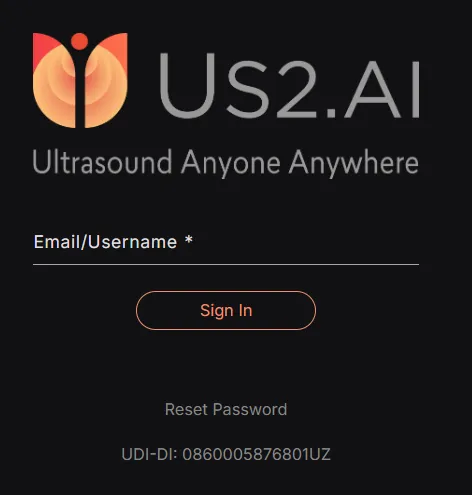
4.1 Login
Using your user login credentials that you will have received separately, use your browser and navigate to https://app.us.Us2.ai/ to login.
4.2 Echoloader
- Select the "EchoLoader" option. Note only DICOM format studies are supported.
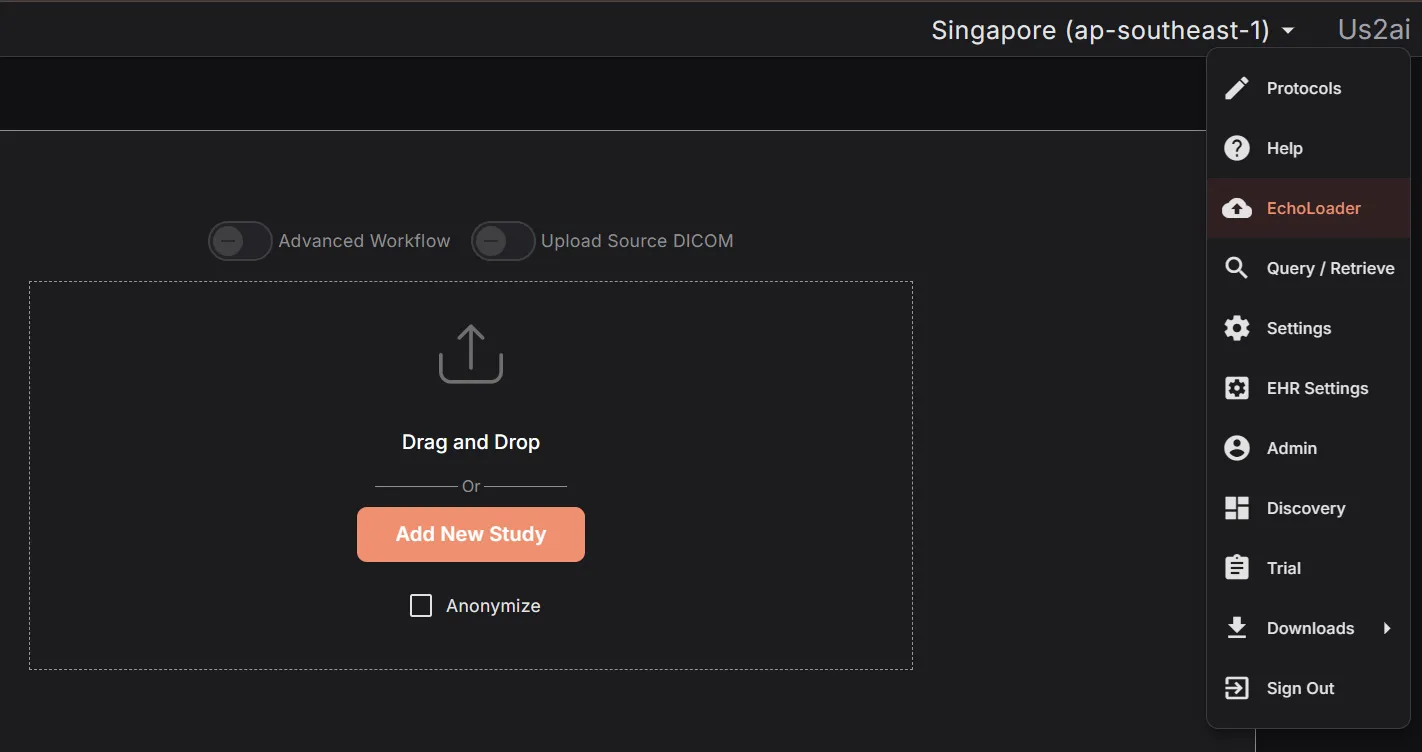
- Click on Browse Files to locate the echo studies you would like to analyze, or simply drag and drop them into the browser window.
- Click the Anonymize checkbox to remove patient identifiers from the processed files.
- Once your files have been added, you will be given the chance to approve them before they are processed (in the cloud or on premises). The original DICOM files are stripped of the majority of their information, images cropped to remove any potential identifiers, and DICOM metatags removed, except for those required by the software.
- The following DICOM metatags are always used:
- AccessionNumber
- AcquisitionDate
- AcquisitionDateTime
- AcquisitionTime
- ClinicalTrialProtocolID
- ClinicalTrialProtocolName
- ClinicalTrialSubjectID
- ContentDate
- ContentTime
- InstanceNumber
- InstitutionName
- Manufacturer
- ManufacturerModelName
- Modality
- PatientAge
- PatientSex
- PatientSize
- PatientWeight
- ReadingPhysician
- ReferringPhysician
- SeriesDate
- SeriesInstanceUID
- SeriesNumber
- SOPClassUID
- SOPInstanceUID
- StudyDate
- StudyDescription
- StudyID
- StudyInstanceUID
- StudyTime
- ViewNumber
- ViewName
- TransferSyntaxUID
- StageNumber
- StageName
- SequenceOfUltrasoundRegions
- SegmentedRedPaletteColorLookupTableData
- SegmentedGreenPaletteColorLookupTableData
- SegmentedBluePaletteColorLookupTableData
- SamplesPerPixel
- Rows
- RedPaletteColorLookupTableDescriptor
- RedPaletteColorLookupTableData
- RecommendedDisplayFrameRate
- PlanarConfiguration
- PixelRepresentation
- PhotometricInterpretation
- NumberOfStages
- NumberOfFrames
- HighBit
- HeartRate
- GreenPaletteColorLookupTableDescriptor
- GreenPaletteColorLookupTableData
- FrameTime
- EffectiveDuration
- Columns
- CineRate
- BluePaletteColorLookupTableDescriptor
- BluePaletteColorLookupTableData
- BitsStored
- BitsAllocated
- The following DICOM metatags are used when anonymization is turned off:
- PatientBirthDate
- PatientID
- PatientName
Prior to uploading, you will be able to remove, pseudonymize for each of the respective metatags by clicking on the ‘Edit’ button beside the Anonymize checkbox.
After you have approved the images, the upload will start following a predefined workflow based on the mode of installation.
- Cloud: A pre-signed URL will be created and used to upload to the AWS s3 bucket
- On-Prem: Upload will be performed directly to an upload URL
Upon completion of the upload, the automated analysis will be triggered based on the uploaded DICOM images and reflected on the search page as the processing finalizes.
Echos must be in the standard DICOM format and can be loaded from your local computer or a network For connections to a PACs server or custom EHR integrations, please contact Us2.ai (see Manufacturer section at the end of this document)
4.3.1 Sync
On page load, the Search Component uses the Sync Service to search parameters such as databases available, and referral reasons.
4.3.2 Refresh
The search results are periodically updated to keep the search results in sync with changes from other users or automated analysis.
4.3.3 Navigate
Clicking a row in the Search Result component will navigate to the report clicked. On click, the URL is changed to the report page, with the parameters associated with the row included. The URL is also encoded with information from the original search. This allows navigation between reports on the report page, based on the search parameters.
Studies can also be viewed using mobile device browsers or via the Us2.ai app available on Android. Please contact your account representative for access.
4.4 Viewing patient reports
The Report page displays patient reports in 2 panels,
- Detailed list of patient information, notes and automated findings based on International Cardiology guidelines. A video containing a moving chamber segmentation will be included if available.
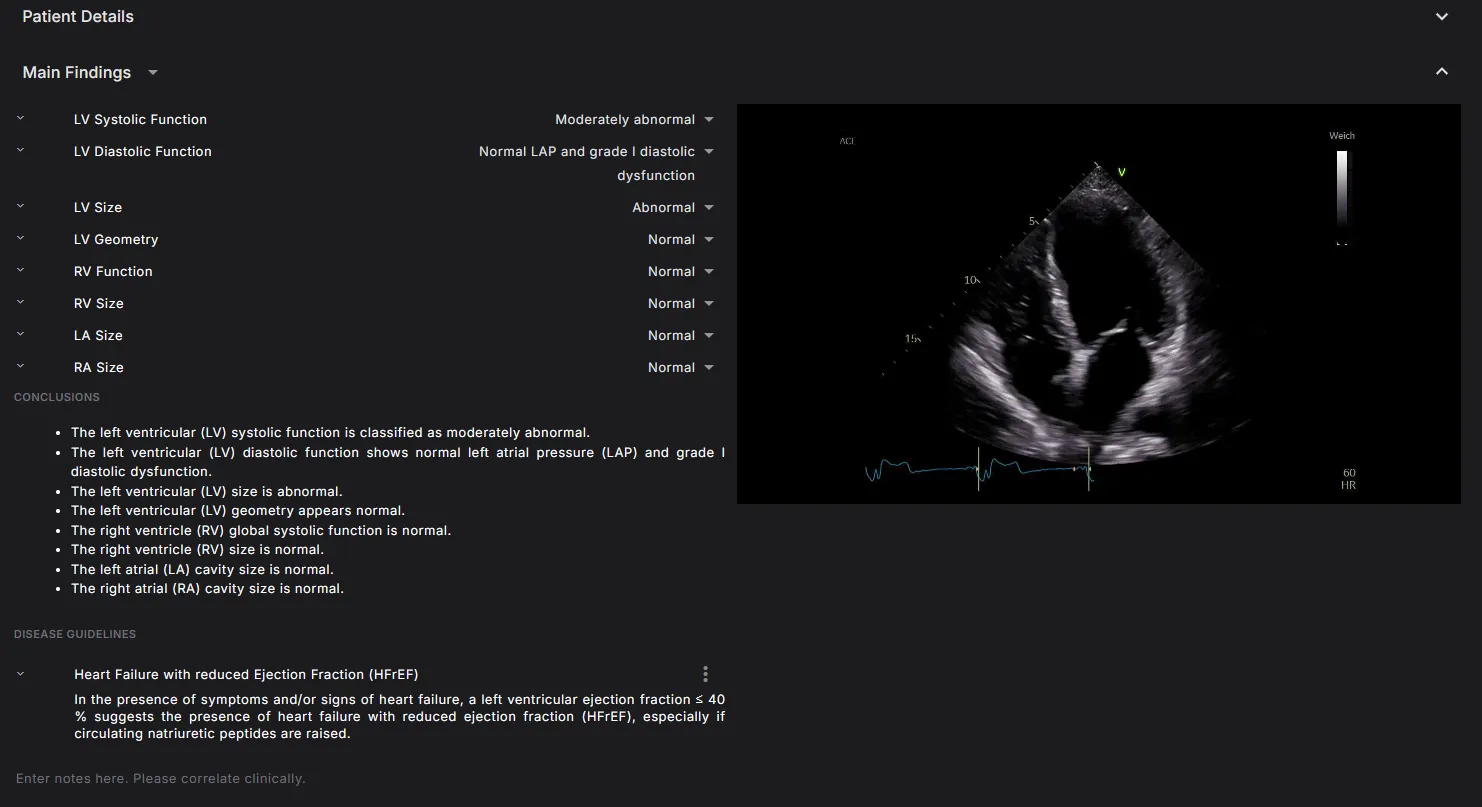
By selecting the patient ID from the dropdown list triggered by clicking on the Select Patient icon, the report reloads with information from the selected patient. The arrow buttons may also be used to navigate to next and previous patients.
- List of all measurements provided in the patient report, grouped by their respective headings with abnormal measurements displayed in red.
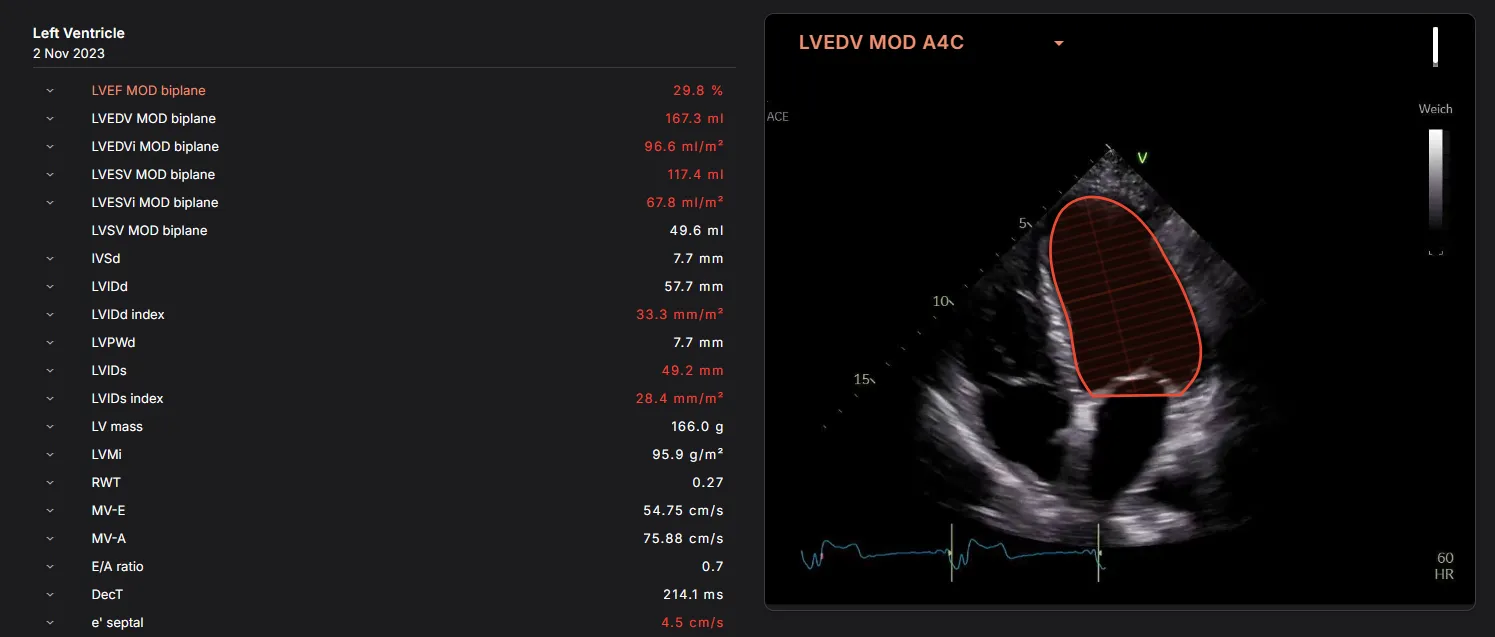
- Hovering over the measurements displayed in the report, the dependencies for that measurement are parsed and then passed into the preview component which displays the measurement on the custom editor canvas. If dependencies passed in consists of an array of derived measurements, the dropdown in the preview box will list all of the dependent measurements. If there is more than one value for a particular measurement, the top shopper for all measurements will be displayed, and an option to preview the rest will present itself as radio buttons. Each measurement displayed in the report is linked to the measurement URL to access the measurements page where edits may be applied.
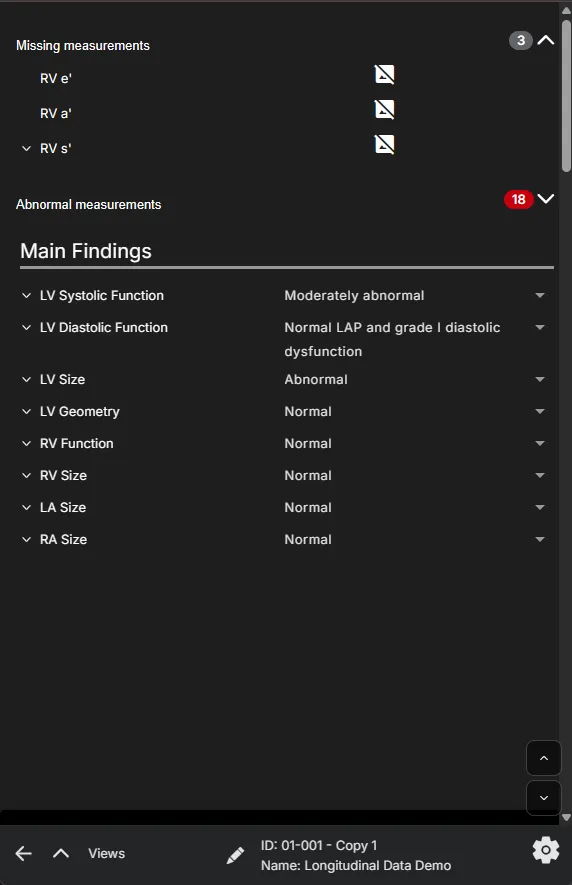
Or, if using a mobile device, you can tap swipe to navigate through the Report sections.
4.4.1 Primary Measurements
The following measurements are available:
| S/N | Measurement | Description |
|---|---|---|
| 1 | LVEF MOD Biplane | Left Ventricular Ejection Fraction calculation based on Method of Disks |
| 2 | LVEDV MOD Biplane | Left Ventricular End Diastolic Volume biplane calculation based on Method Of Disks |
| 3 | LVESV MOD Biplane | Left Ventricular End Systolic Volume biplane calculation based on Method Of Disks |
| 4 | LVSV MOD Biplane | Left Ventricular Stroke Volume biplane calculation based on Method Of Disks |
| 5 | LAESV MOD Biplane | Left Atrial End Systolic Volume biplane calculation based on Method Of Disks |
| 6 | RA Area | Right Atrial area at end systole |
| 7 | RVIDd | Right Ventricular Internal Diameter at end diastole |
| 8 | LVIDd | Left Ventricular Internal Diameter at end diastole |
| 9 | LVIDs | Left Ventricular Internal Diameter at end systole |
| 10 | LVPWd | Left Ventricular Posterior Wall thickness at end diastole |
| 11 | IVSd | Inter Ventricular Septal thickness at end diastole |
| 12 | PWTDI lateral e’ | Early diastolic tissue velocity taken from the lateral wall of LV |
| 13 | PWTDI lateral a’ | Late diastolic tissue velocity taken from the lateral wall of LV |
| 14 | PWTDI lateral s’ | Systolic tissue velocity taken from the lateral wall of LV |
| 15 | PWTDI septal e’ | Early diastolic tissue velocity taken from the septal wall of LV |
| 16 | PWTDI septal a’ | Late diastolic tissue velocity taken from the septal wall of LV |
| 17 | PWTDI septal s’ | Systolic tissue velocity taken from the septal wall of LV |
| 18 | PWMV E | Pulse wave velocity of early diastolic transmitral flow |
| 19 | PWMV A | Pulse wave velocity of late diastolic transmitral flow |
| 20 | PWMV DecT | Deceleration Time of early diastolic MV transmitral flow |
| 21 | PWMV ADur | Late diastolic transmitral flow |
| 22 | E/e’ mean | E/e’ mean |
| 23 | CW TrV Vmax | Continuous wave of tricuspid regurgitation maximum velocity |
| 24 | LV GLS | Left ventricular global longitudinal strain |
| 25 | A4C LV GLS | Left ventricular global longitudinal strain in A4C |
| 26 | A3C LV GLS | Left ventricular global longitudinal strain in A3C |
| 27 | A2C LV GLS | Left ventricular global longitudinal strain in A2C |
| 28 | LV Regional Strain | LV Regional Strain |
| 29 | TAPSE | Tricuspid annular plane systolic excursion |
| 30 | RV E ‘ | Early diastole tissue velocity taken from right ventricular free wall |
| 31 | RV A’ | Late diastole tissue velocity taken from right ventricular free wall |
| 32 | RV S’ | Systolic tissue velocity taken from right ventricular free wall |
| 33 | PV VTI | Pulmonic velocity time integral |
| 34 | RVOT VTI | Right ventricular outflow tract velocity time integral |
| 35 | IVC max | Inferior vena cava maximum diameter |
| 36 | IVC min | Inferior vena cava minimum diameter |
| 37 | Sinotubular Junction | Sinotubular Junction diameter |
| 38 | Sinus valsalva | Sinus of valsalva diameter |
| 39 | Asc. Ao | Ascending aorta diameter |
| 40 | RVOT Proximal | Right ventricular outflow tract proximal diameter |
| 41 | RV area A4C (d) | Right ventricular area in A4C (diastole) |
| 42 | RV area A4C (s) | Right ventricular area in A4C (systole) |
| 43 | RVEDV MOD A4C | Right ventricular End Diastolic Volume biplane calculation based on Method of Disks in A4C |
| 44 | RVESV MOD A4C | Right ventricular End Systole Volume biplane calculation based on Method of Disks in A4C |
| 45 | LVOT Diameter | Left ventricular outflow tract diameter |
| 46 | TR Jet Area | Tricuspid regurgitation jet area |
| 47 | TR Vena Contracta | Tricuspid regurgitation vena contracta |
| 48 | MR Jet Area | Mitral regurgitation jet area |
| 49 | MR Jet Ratio | Mitral regurgitation jet ratio |
| 50 | CW MR VTI | Continuous wave mitral regurgitation velocity time integral |
| 51 | CW MR Vmax | Continuous wave mitral regurgitation maximum velocity |
| 52 | CW MR Vmean | Continuous wave mitral regurgitation mean velocity |
| 53 | CW MR Pmax | Continuous wave mitral regurgitation maximum pressure |
| 54 | CW MR Pmean | Continuous wave mitral regurgitation mean pressure |
| 55 | CW AoV Vmax | Continuous wave aortic valve maximum velocity |
| 56 | CW AoV VTI | Continuous wave aortic valve velocity time integral |
| 57 | CW AoV Pmax | Continuous wave aortic valve maximum pressure |
| 58 | CW AoV Pmean | Continuous wave aortic valve mean pressure |
| 59 | PW LVOT Vmax | Pulse wave left ventricular outflow tract maximum velocity |
| 60 | PW LVOT VTI | Pulse wave left ventricular outflow tract velocity time integral |
| 61 | PW LVOT Pmax | Pulse wave left ventricular outflow tract maximum pressure |
| 62 | PW LVOT Pmean | Pulse wave left ventricular outflow tract mean pressure |
| 63 | AVA | Aortic valve area |
| 64 | VR | Velocity ratio |
| 65 | LA GLS | Left atrial global longitudinal strain |
| 66 | LVEDV MOD Biplane (Contrast) | Left Ventricular End Diastolic Volume by Biplane Method of Disks in Contrast Echocardiogram |
| 67 | LVESV MOD Biplane (Contrast) | Left Ventricular End Systolic Volume by Biplane Method of Disks in Contrast Echocardiogram |
| 68 | LVEF MOD Biplane (Contrast) | Left Ventricular Ejection Fraction Volume by Biplane Method of Disks in Contrast Echocardiogram |
When approved International Reference Guidelines are available for a measurement, they can be viewed, along with the exact reference where the Guideline determination can be found, in an expanded panel by clicking on the arrow next to the measurement name.
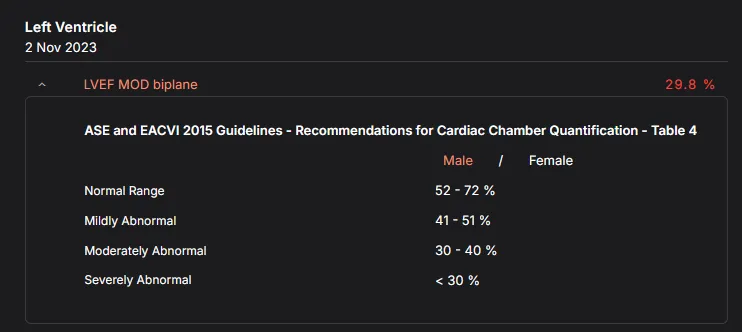
If measurement values are available in the Report, then the parameters in approved International Reference Guidelines will be used to generate Main Findings or Clinical Notes for the study. If any measurement values required by the International Reference Guidelines are missing, then the related Main Finding will not be displayed.
4.4.2 International Reference Guidelines
The list of possible Main Findings that can be displayed using International Reference Guidelines are:
LV Systolic Function
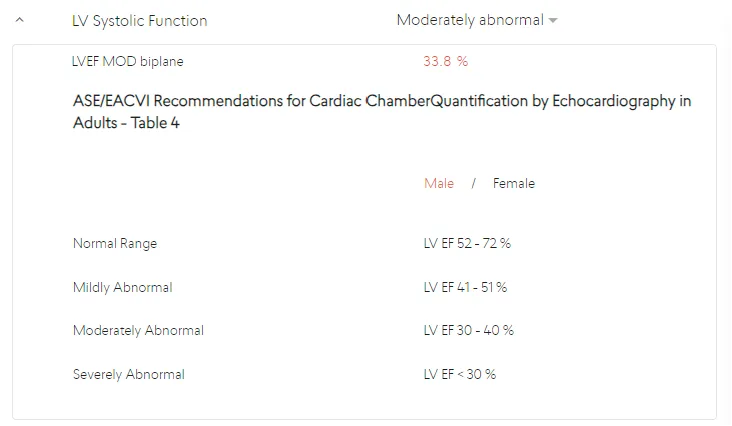
LV Diastolic Function
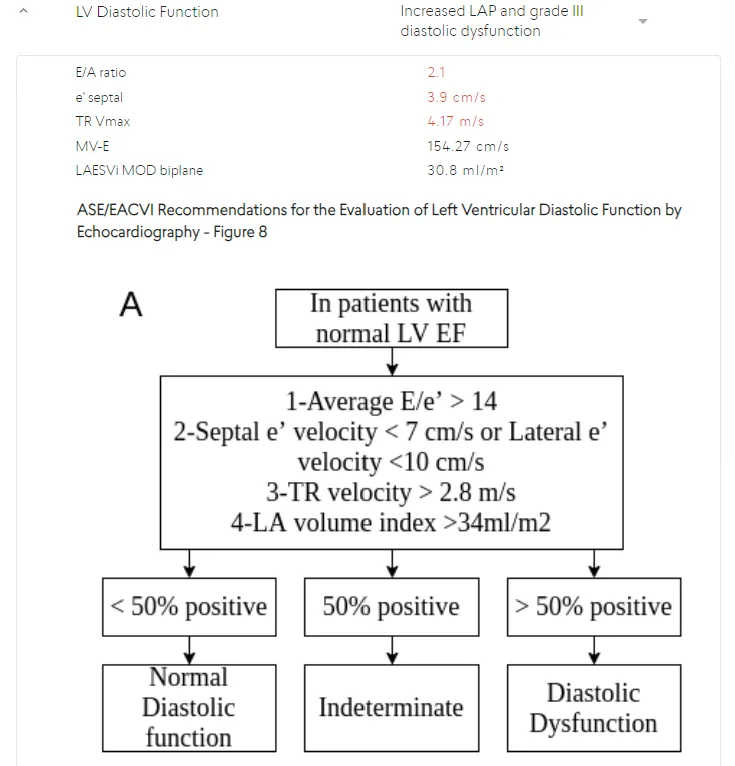
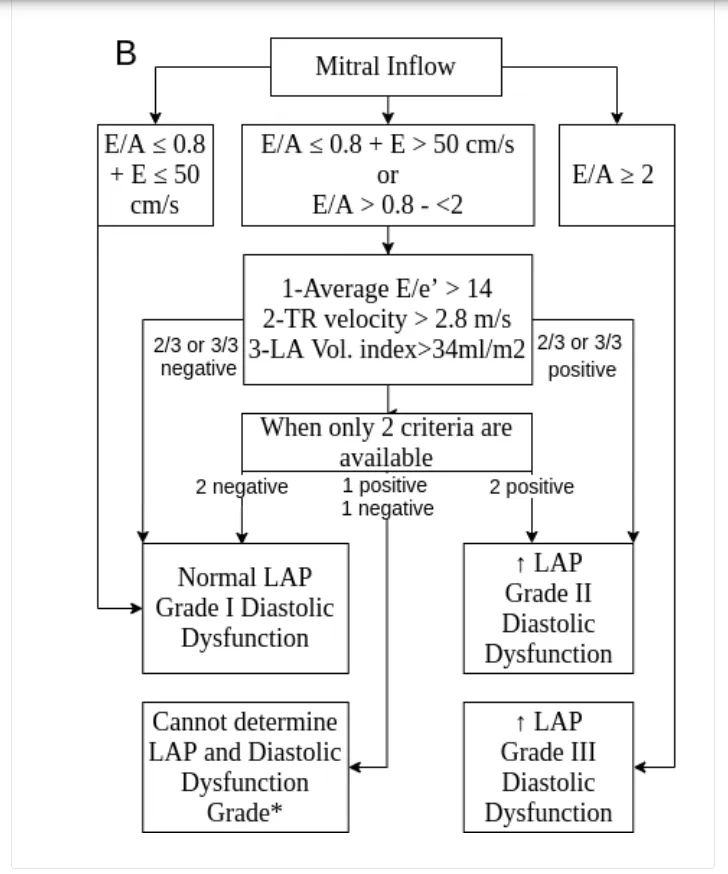
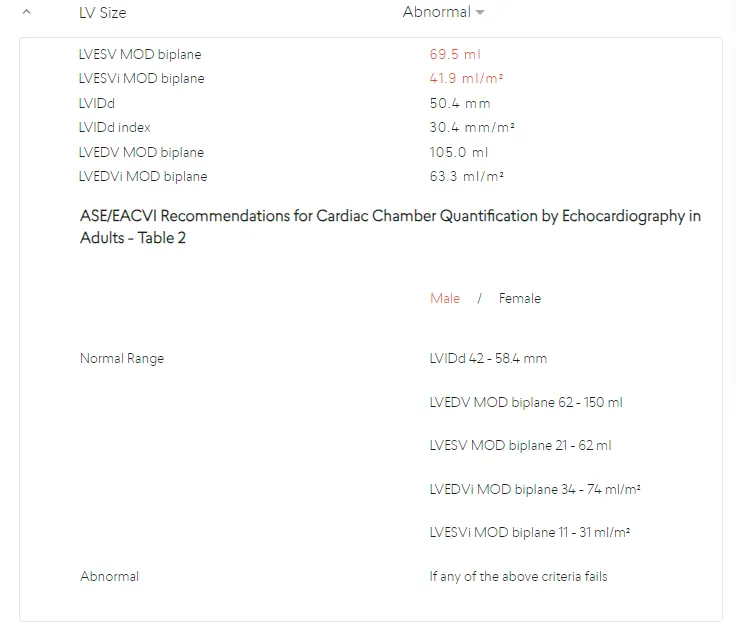
LV Size
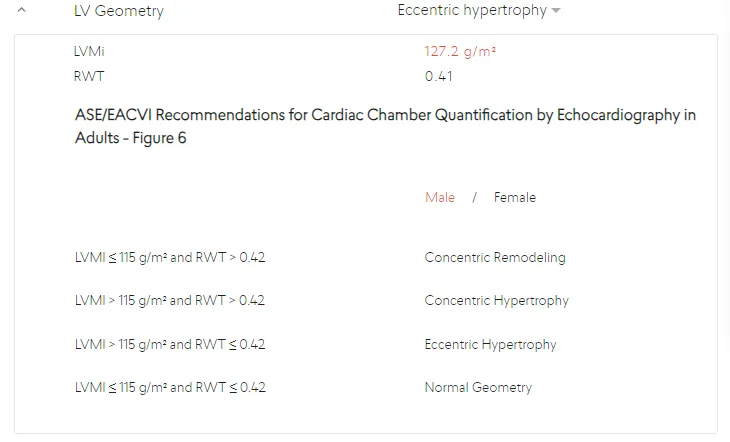
LV Geometry
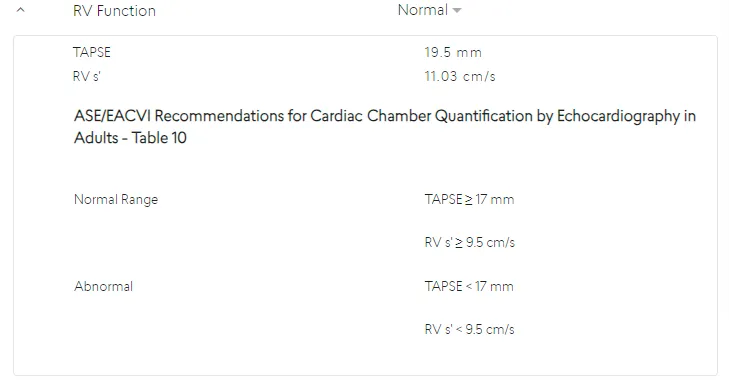
RV Function
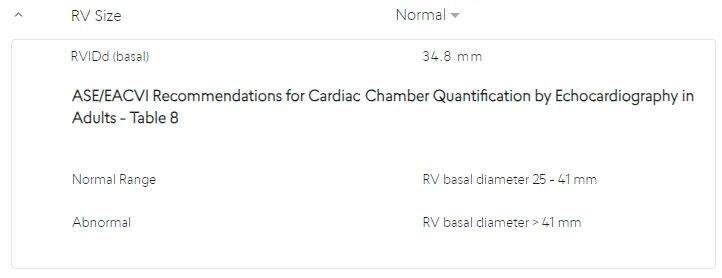
RV Size
LA Size
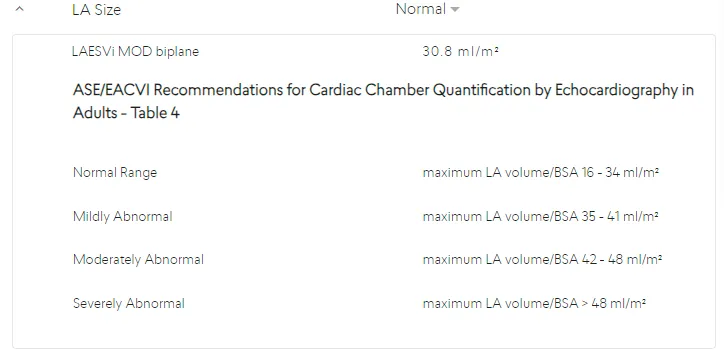
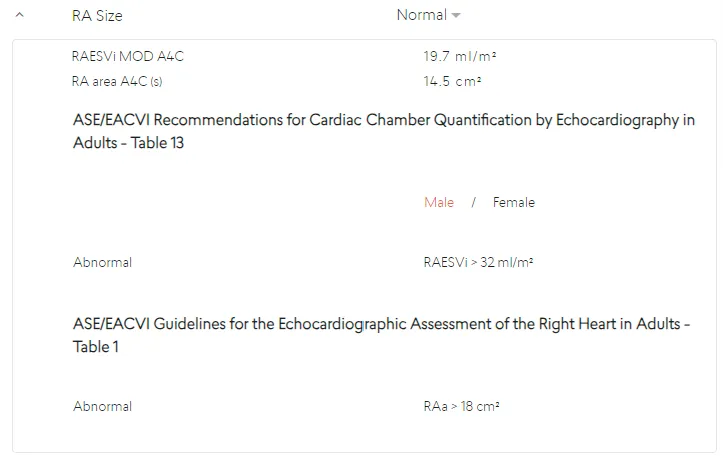
RA Size
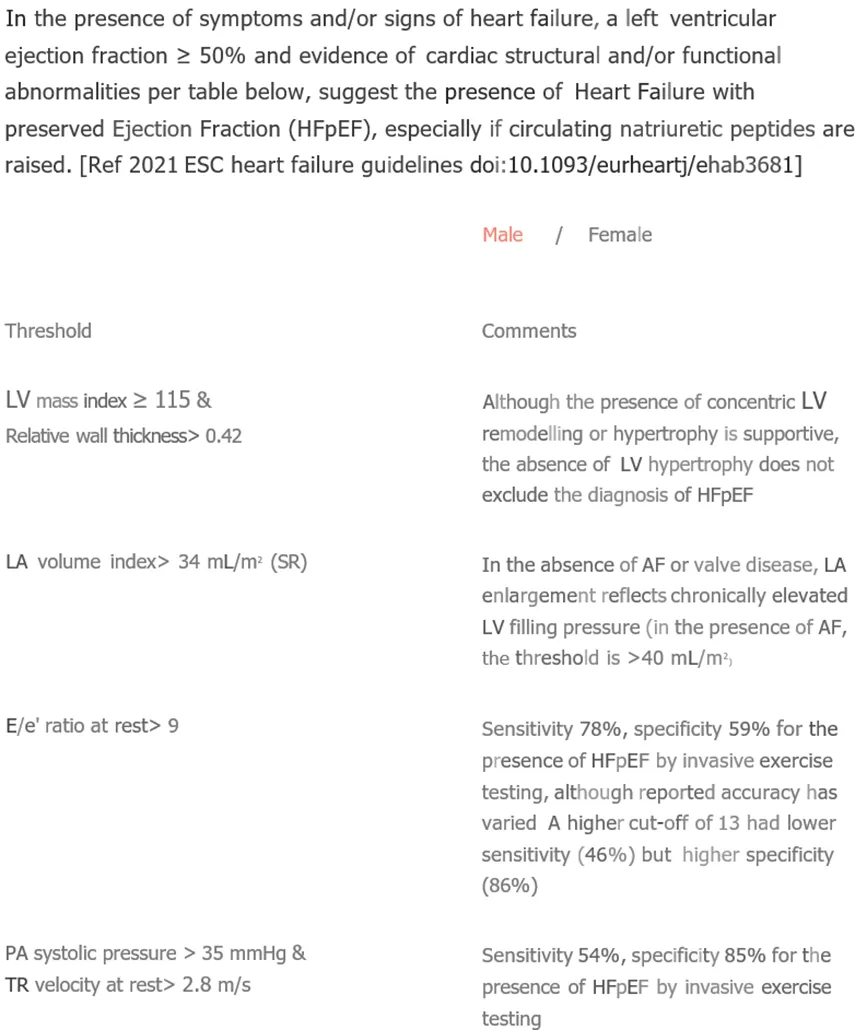
Heart Failure with Preserved Ejection Fraction (HFpEF)
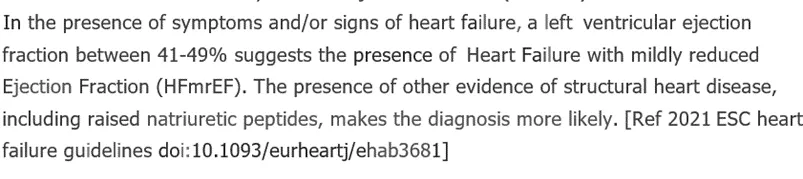
Heart Failure with mildly reduced Ejection Fraction (HFmrEF)
Heart Failure with reduced Ejection Fraction (HFrEF)

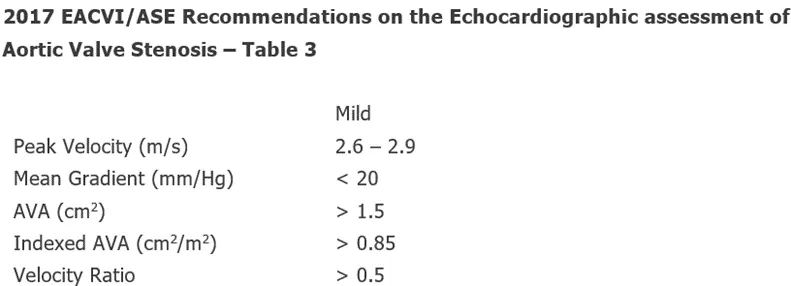
Mild Aortic Stenosis
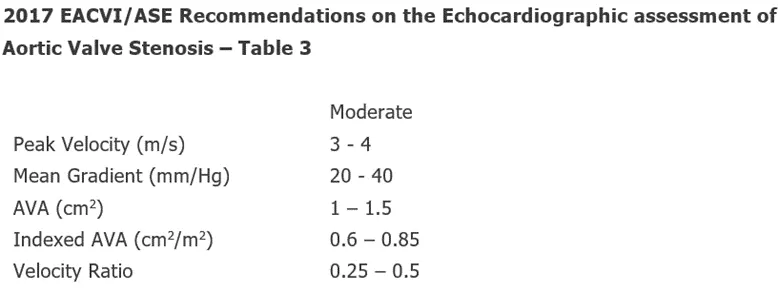
Moderate Aortic Stenosis
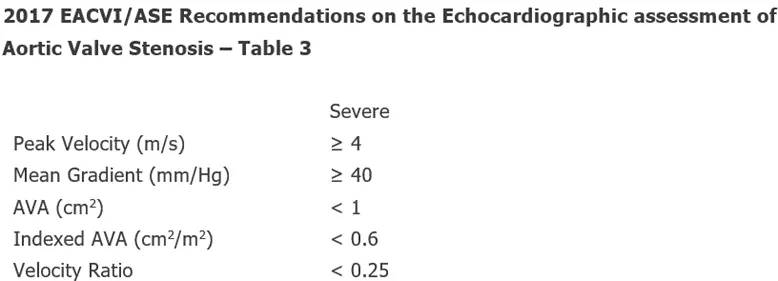
Severe Aortic Stenosis
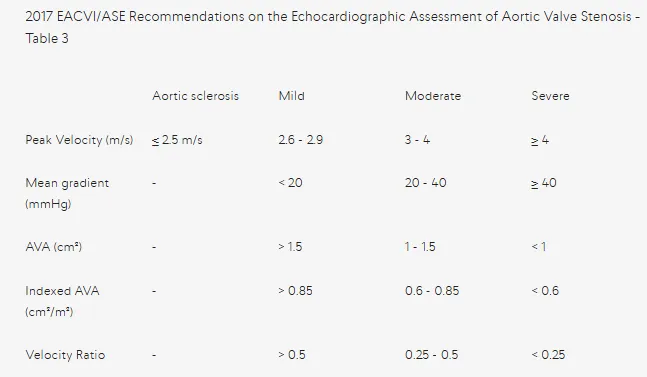
Discordant between AVA and gradient. Re-check all measurements, or consider Low-Flow Low-Gradient
Intermediate Echocardiographic Probability of Pulmonary Hypertension
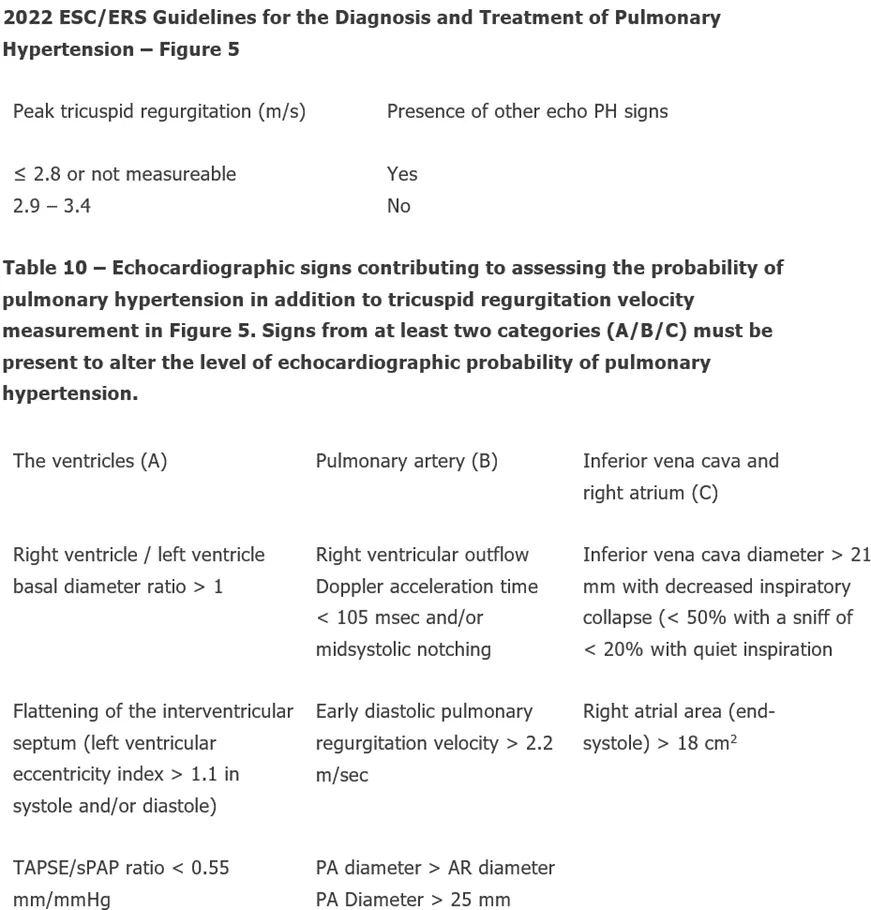
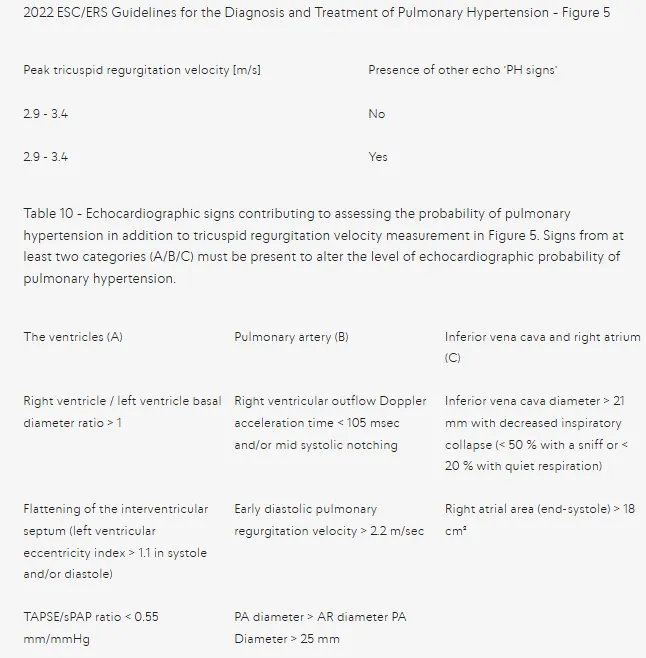
Intermediate (cannot rule out high) Echocardiographic Probability of Pulmonary Hypertension
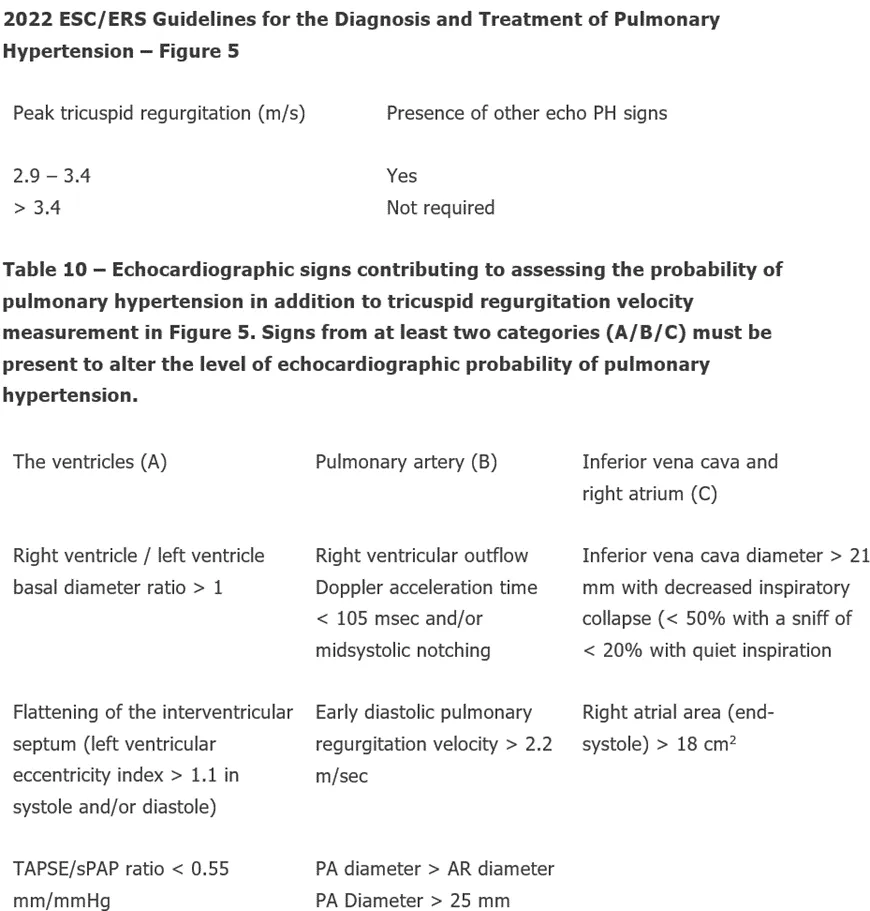
High Echocardiographic Probability of Pulmonary Hypertension
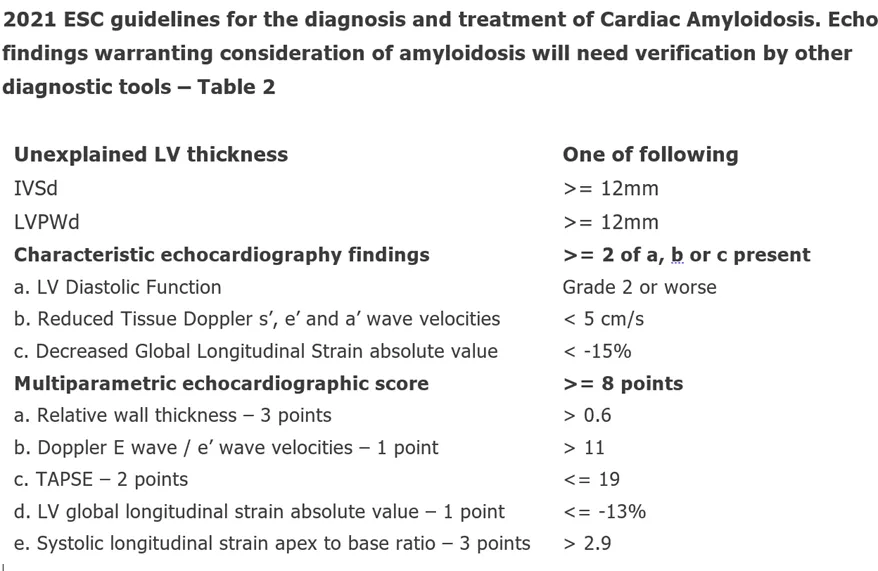
Cardiac Amyloidosis
Hovering over a measurement name displays a preview of the annotation made and underlying measurement. Measurement values that fall outside of available International Reference Guidelines are highlighted in red. You may edit the measurements/suggested conclusions, illustrated in Section 4.3.
If a measurement value is calculated from more than one annotation, they can all quickly be reviewed by clicking the pull down arrow in the preview image.
4.4.3 Supplemental Modules
For users with access to supplemental modules that uses AI to identify patients who need additional follow up for the various disease(s) but do not replace current standards of care.
4.4.3.1 Cardiac Amyloidosis - AI
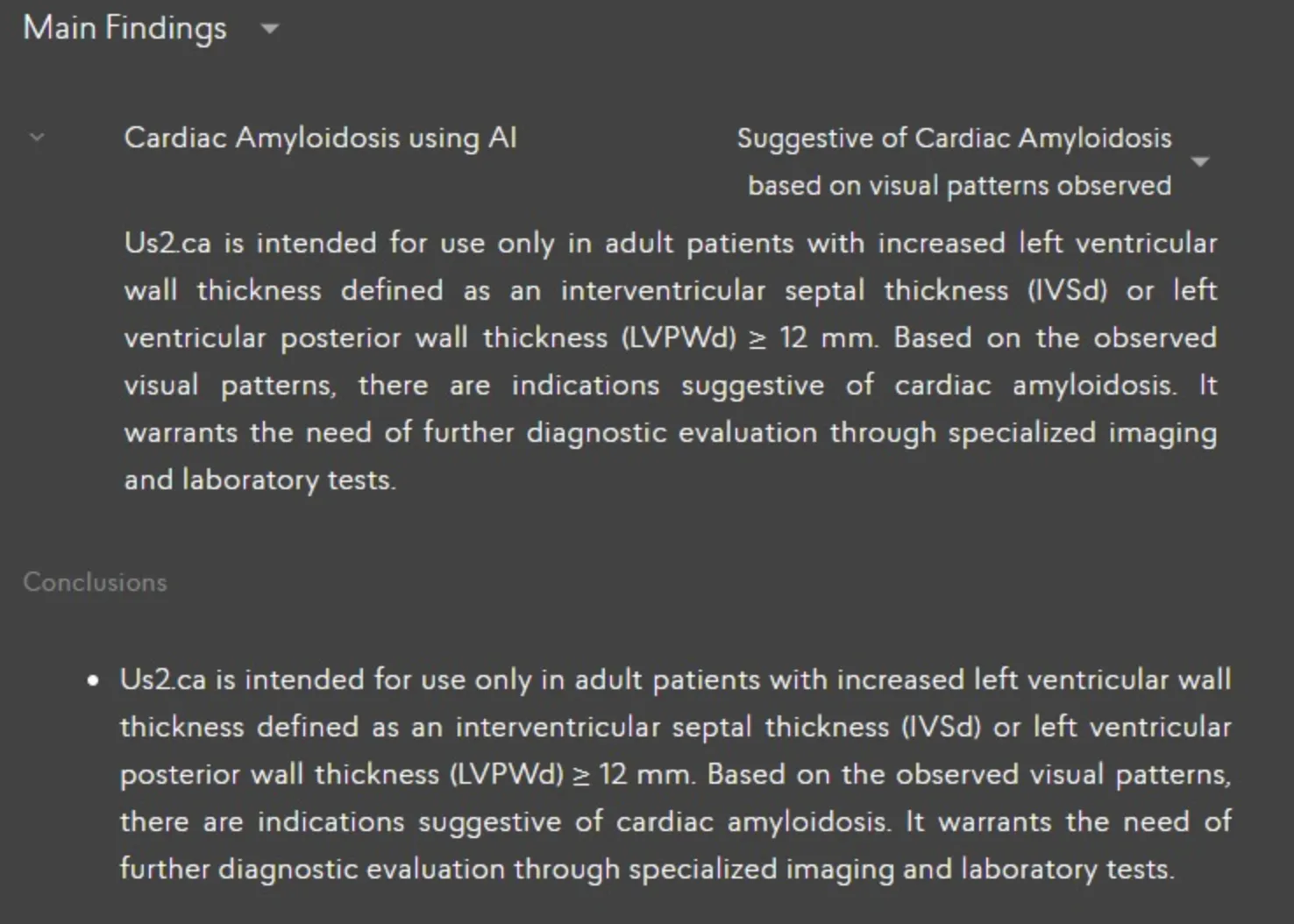
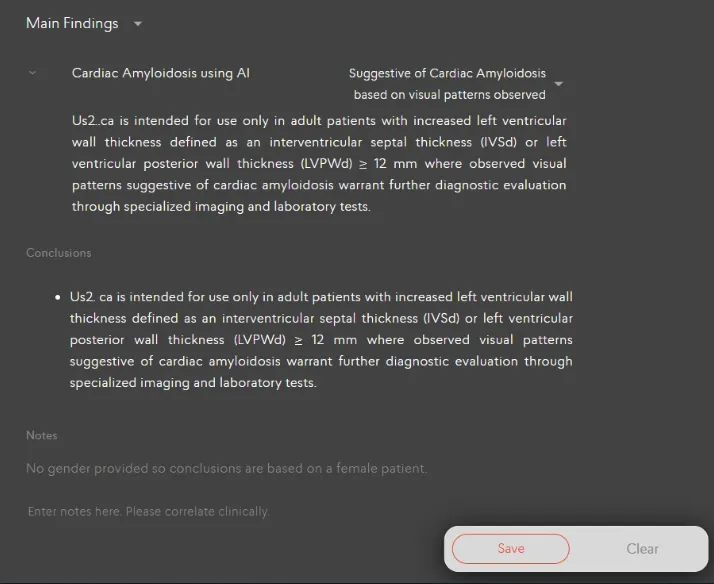
When echocardiogram studies are sent to the Us2.v2 device, the Us2.ca add-on software module will process the A4C views before the report is generated. Within the generated report, Us2.ca will mention whether a patient study is “Suggestive of Cardiac Amyloidosis” when the model detects the disease with a sufficiently high level of confidence. This result is presented to the user under the Main Findings (Disease Guidelines) section illustrated below,
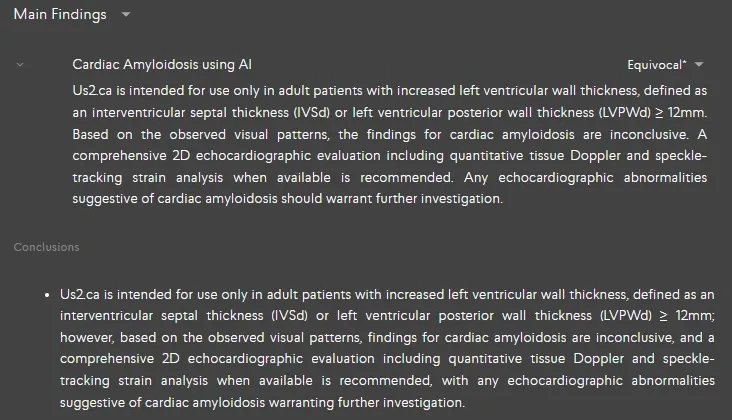
When the model is uncertain, the generated report will mention “Equivocal” for Cardiac Amyloidosis
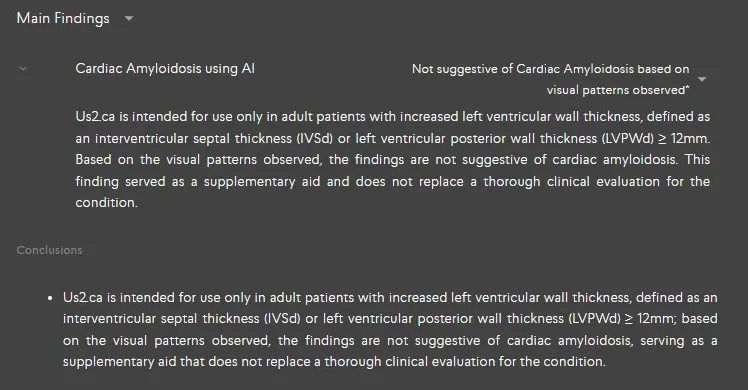
When the model does not observe any visual patterns to suggest Cardiac Amyloidosis, the generated report will mention “Not Suggestive of Cardiac Amyloidosis based on visual patterns observed” along with the emphasis that it does not mean the total replacement of a thorough clinical evaluation.
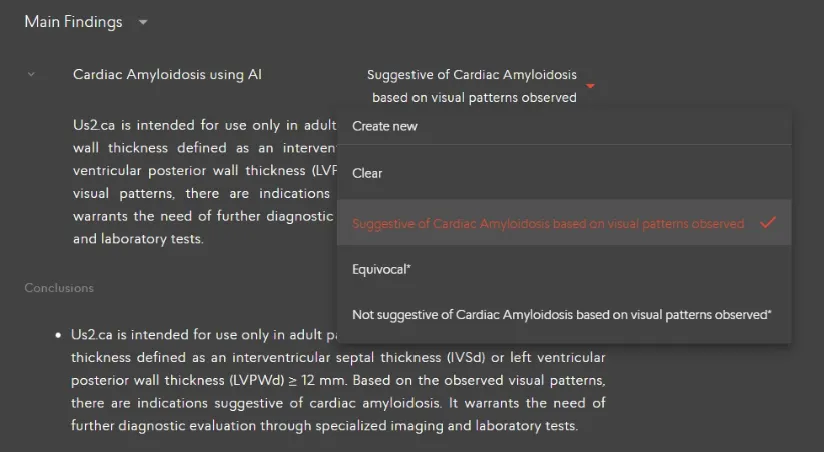
Us2.ca serves as a decision support tool to guide users in their clinical decision-making as they review and finalize the patient study for CA. Clinicians will see a potential CA finding flagged when opening a report, which they can clear the findings or change the decision then approve or reject.
4.4.4.1 Editor page - Panoramic View User Interface
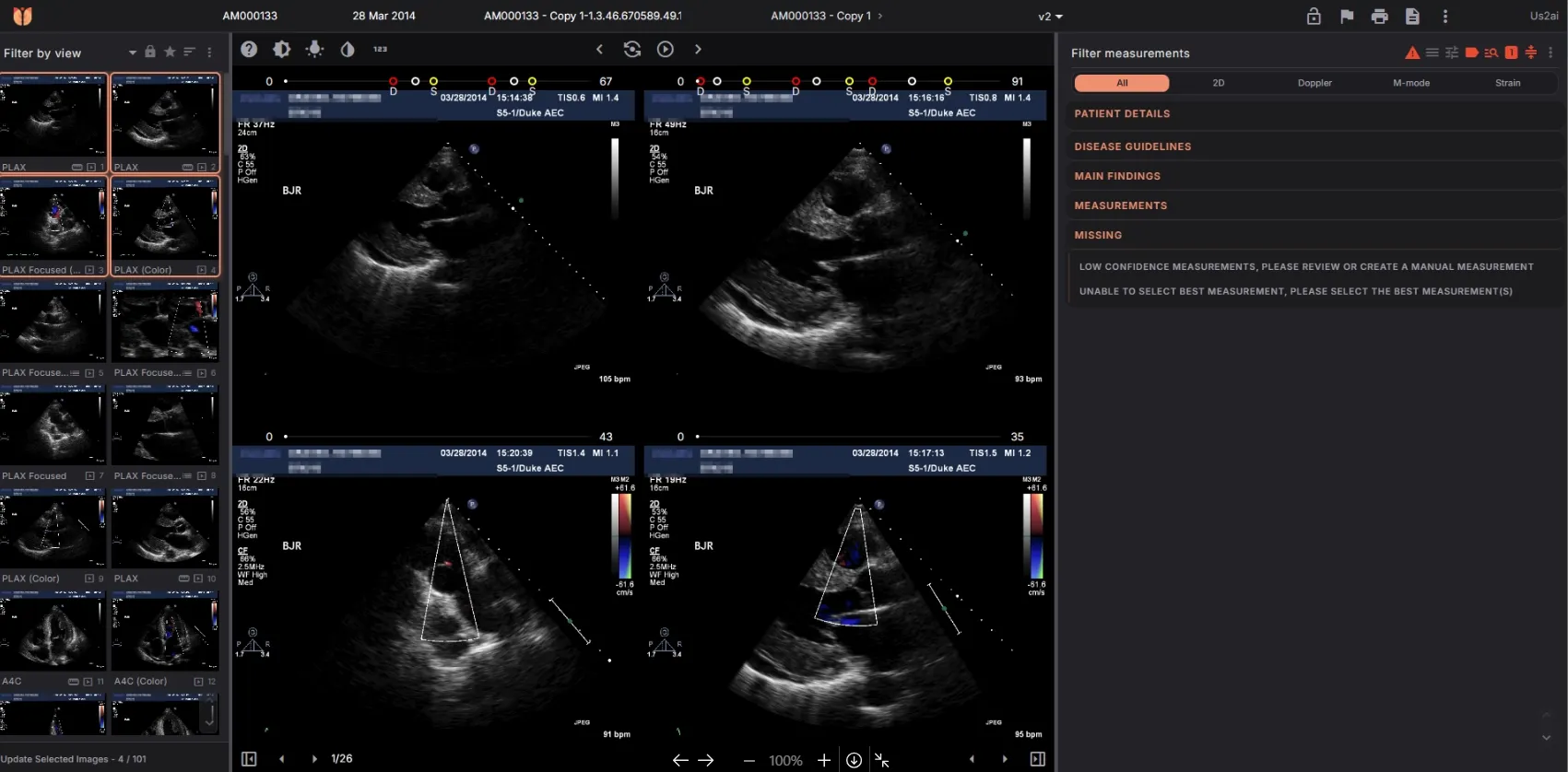
The default panoramic user interface is composed of four main panels:
- Settings Panel – Provide access to configuration options.
- Image Overview Panel – Displays all acquired images.
- Image Display Panel – Displays the selected DICOM images.
- Report Display Panel – Shows the patient's report.
This user interface can be further expanded to support multiple screen configurations for enhanced flexibility.
Settings Panel
The settings panel is the default for all users. Additional features will be available based on the user's permission level. For a detailed list of available functions, please refer to section 5.6.11.
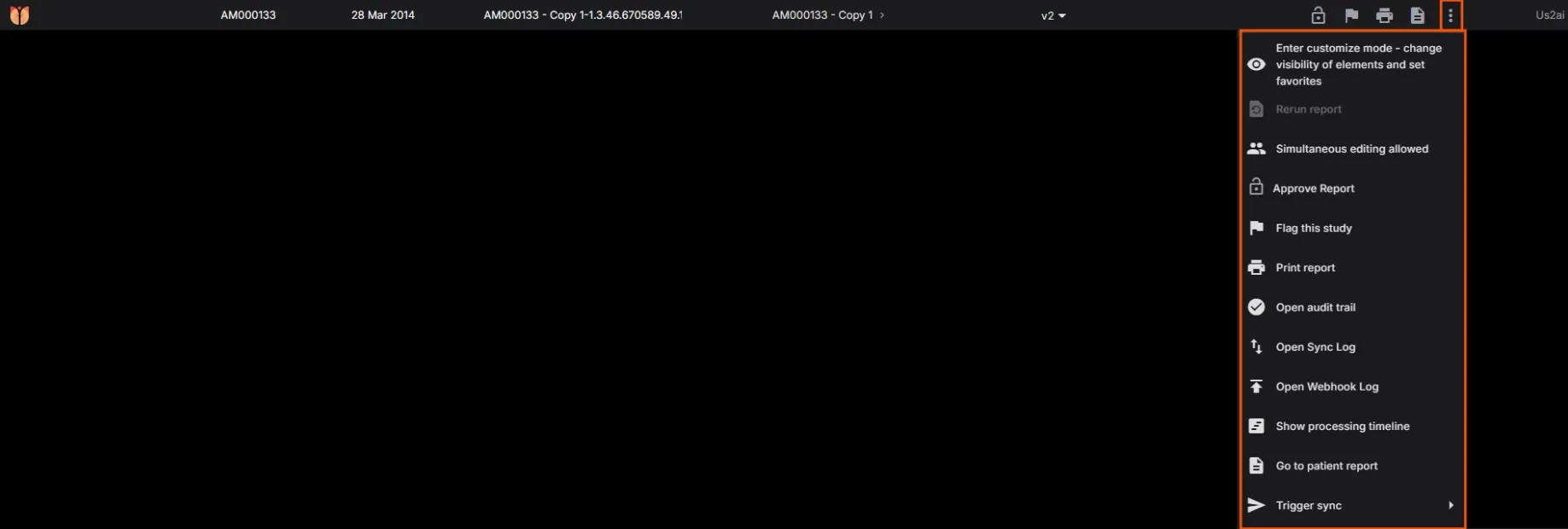
Image Overview Panel
The image overview panel allows customization of displays, advanced sorting and filtering, and view management, including relabeling, reprocessing, deleting views, and creating new exams from DICOM subsets. Filter by view allow search for specific view.
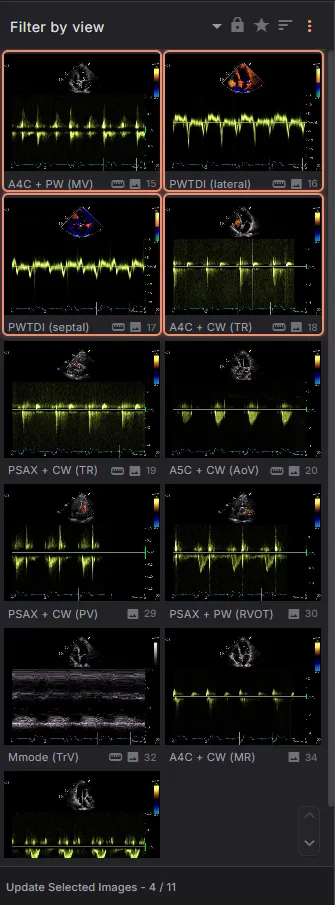
For a detailed list of available functions, please refer to section 5.6.11. Upon selecting "Update Selected Images," the following view will be displayed.
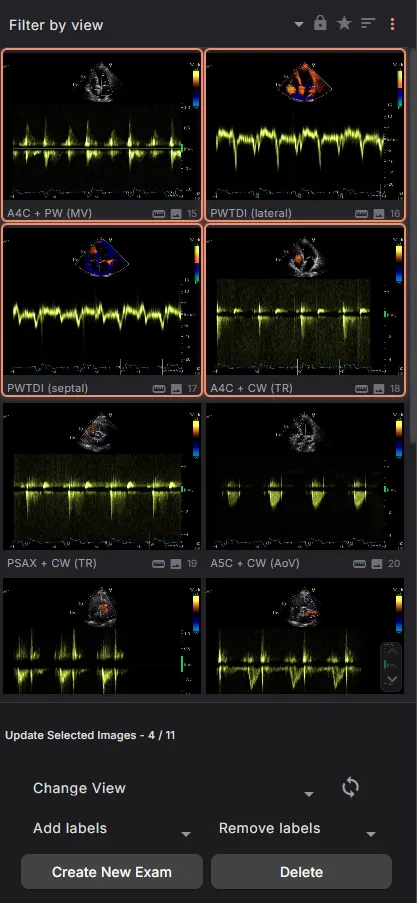
This view allows users to:
- Change View Labels: Select a view and choose a new label from a dropdown menu.
- Remove Labels: Delete unnecessary labels for a cleaner dataset.
- Reprocess Views: Update individual views.
- Create New Exams: Generate a new exam from selected subset of DICOMs.
- Delete Views: Remove specific views from the DICOM dataset.
The panel is fully flexible, by placing the cursor in between the panel (1), allow users to drag left and right to adjust the number of images displayed in a column. Users can also lock the number of images shown (2), ensuring consistency even when resizing the panel.
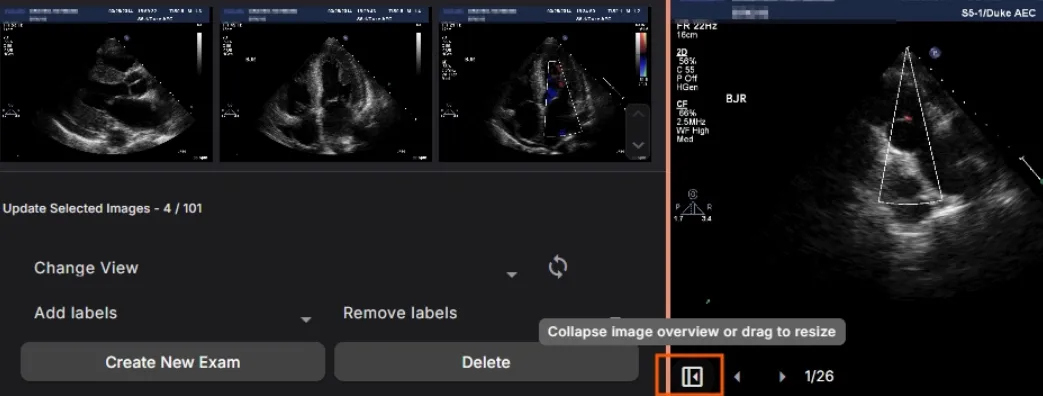
Image Display Panel
Images can be selected from the thumbnails, and the corresponding image will be displayed in the image display panel. You can choose to display images in 2x2, 4x4, or any preferred layout. If you uncheck a box next to a thumbnail, that image will no longer be shown in the image display panel.
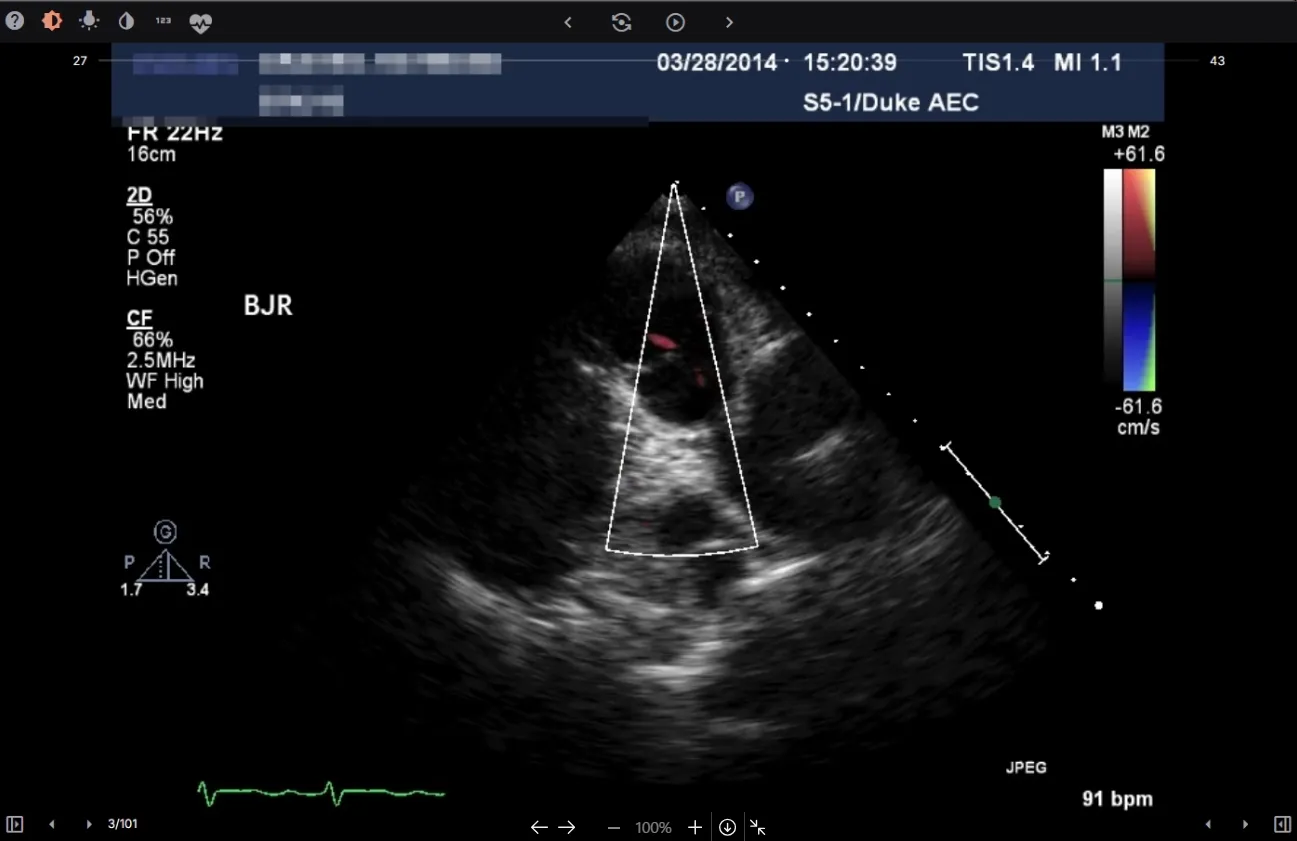

The Image Display Panel includes several features to enhance and control the displayed media:
Playback Control
- Play/Pause: This component allows you to play and pause the video.
- Yo-Yo Loop: Continuously cycle the video between specified start and end frames.
- Playback Speed: Adjust the video’s playback speed to your desired pace.
- Frame Navigation: Use the next and previous frame to select specific frames.
- Red dot indicate diastole frames.
- Yellow dot indicate systole frames.
Image Adjustment:
- Contrast: Use the slider to adjust the contrast of the displayed image.
- Brightness: Use the slider to modify the image brightness.
Image Filter:
- Sepia Filter: Apply a classic sepia filter to the displayed image.
Display Sequence Number:
- Sequence Number: Toggle this option to show or hide the sequence number overlay on the image.
Report Display Panel
This panel includes detailed patient information, measurements by views, and measurements by regions. It also highlights any missing measurements, which are displayed by default to ensure users can easily identify and address incomplete data.
- Filter Measurements Bar
- Use the search bar at the top to filter or search for specific measurements or findings.
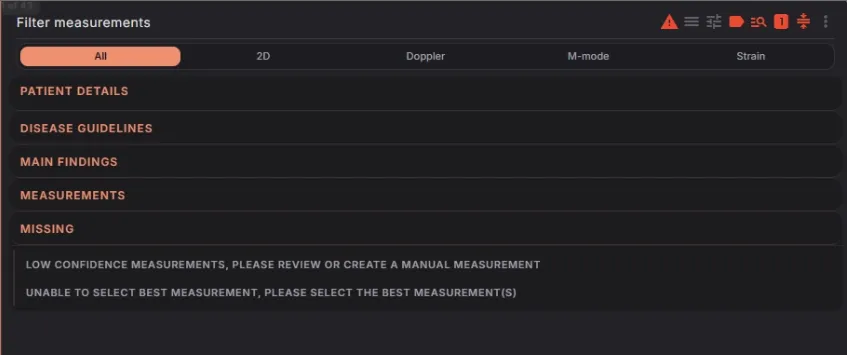
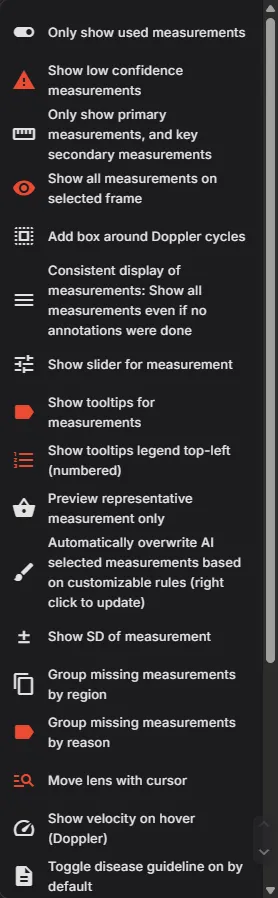
- Use the search bar at the top to filter or search for specific measurements or findings.
- Navigation Icons
The following features enhance the report's functionality:
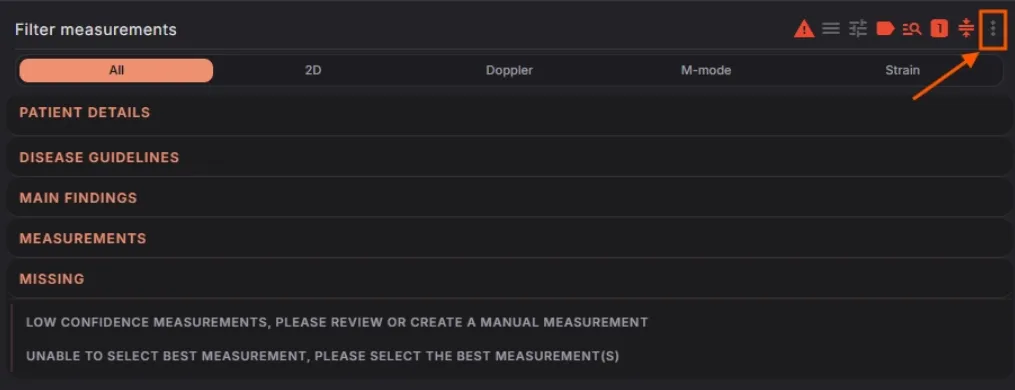
- Toggle: When enabled, measurements with (high confidence) are displayed.

When disabled, measurements with (moderate confidence) are shown for review, allowing users to verify and add them to the report as needed.

- Low Confidence Measurements: Measurements with an exclamation mark indicate low confidence and are also displayed for review, allowing users to verify and add them to the report as needed.

- Unflagging Measurements: To unflag all flagged measurements at once, hover over a flagged value. An icon will appear, allowing you to unflag them with a single click.

- Toggle: When enabled, measurements with (high confidence) are displayed.
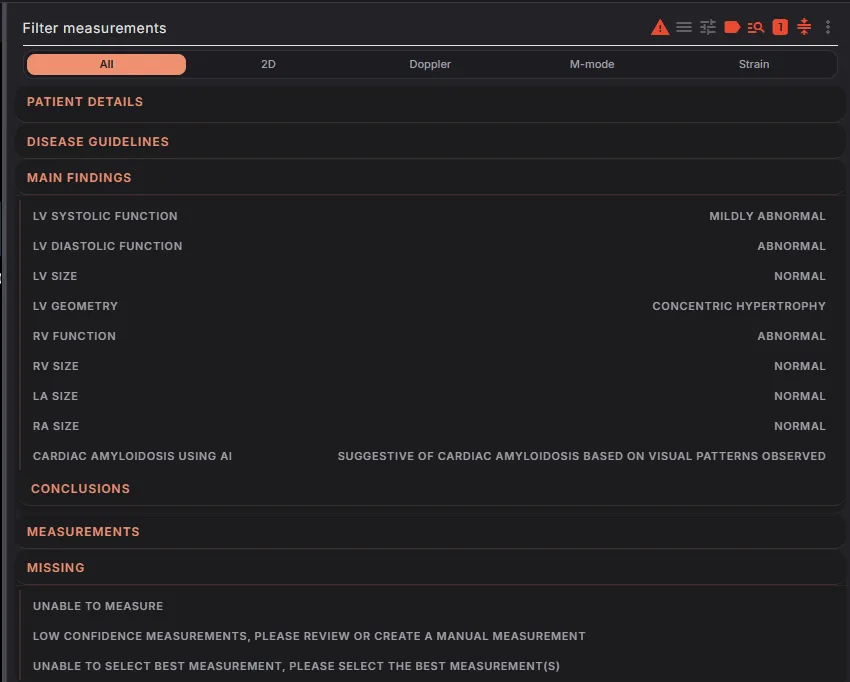
- Main Findings Section
The main findings section provides an auto-generated summary of key measurements and results. The content displayed is tailored based on the protocol selection configured within your user account. This section includes functional and structural assessments of the heart.
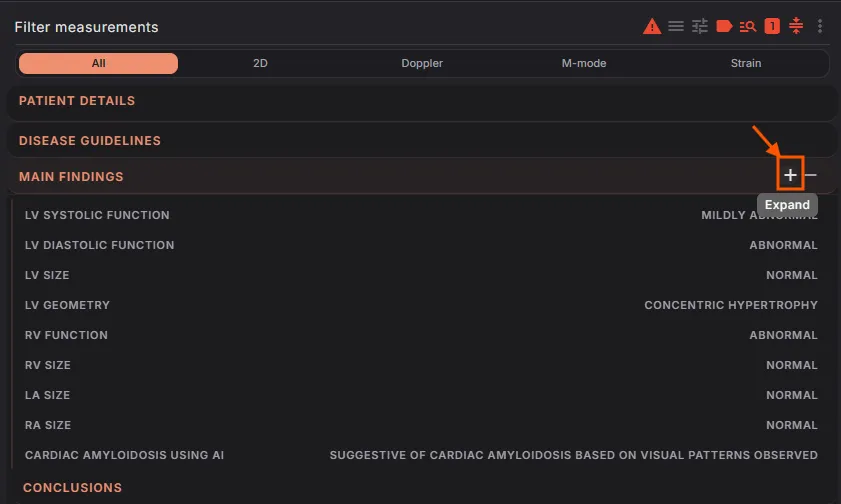
Click + to expand and view detailed measurements and guidelines. Click - to collapse the section.
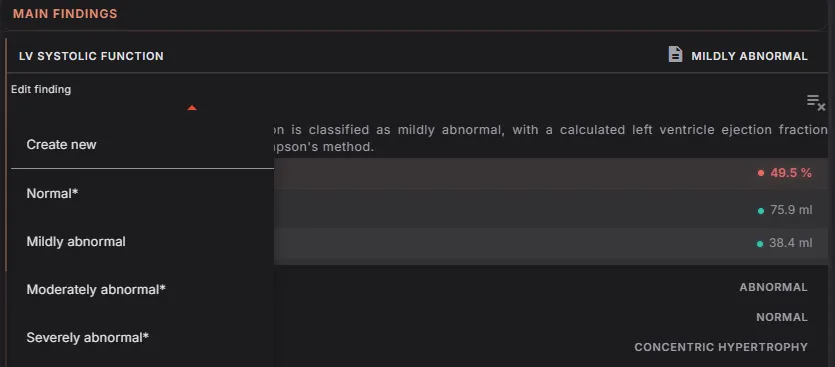
Edit Findings
- To modify a finding:
- Click on the dropdown menu under the selected parameter (e.g., LV Systolic Function).
- Choose from available classifications such as Normal, Mildly Abnormal, Moderately Abnormal, or Severely Abnormal.
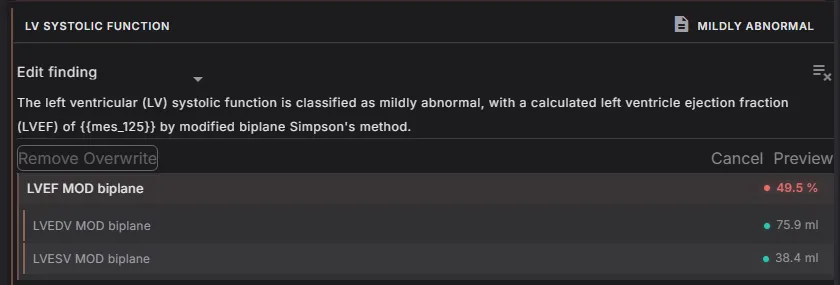
Paragraph Editing
- For detailed edits, press Ctrl + Left Click on the desired paragraph to enable direct editing.
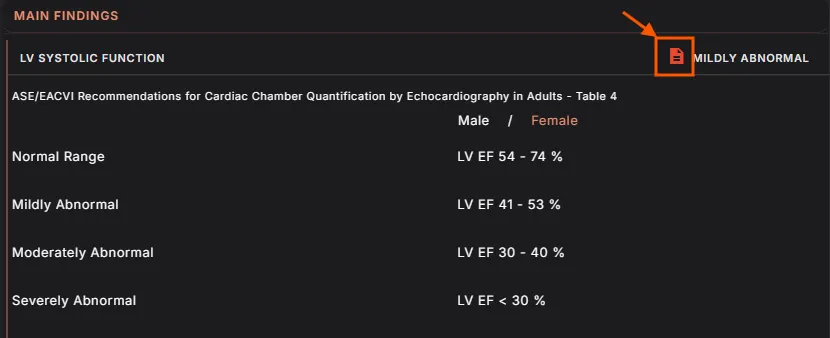
Disease Guideline Integration
- Toggle on the guideline icon to display the ASE/EACVI Guidelines. These guidelines provide reference ranges and classification criteria for measurements, ensuring clinical accuracy.
- To modify a finding:
- Additional Sections
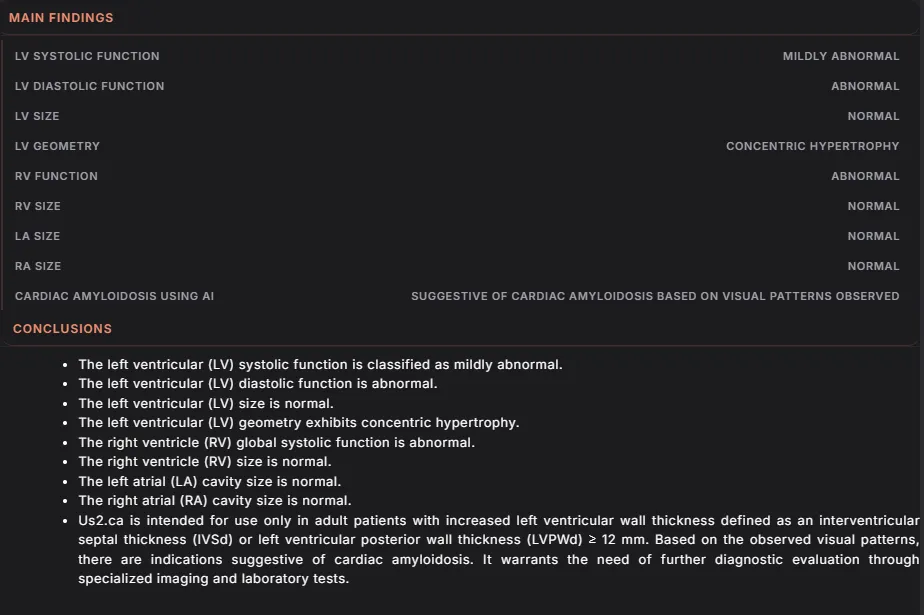
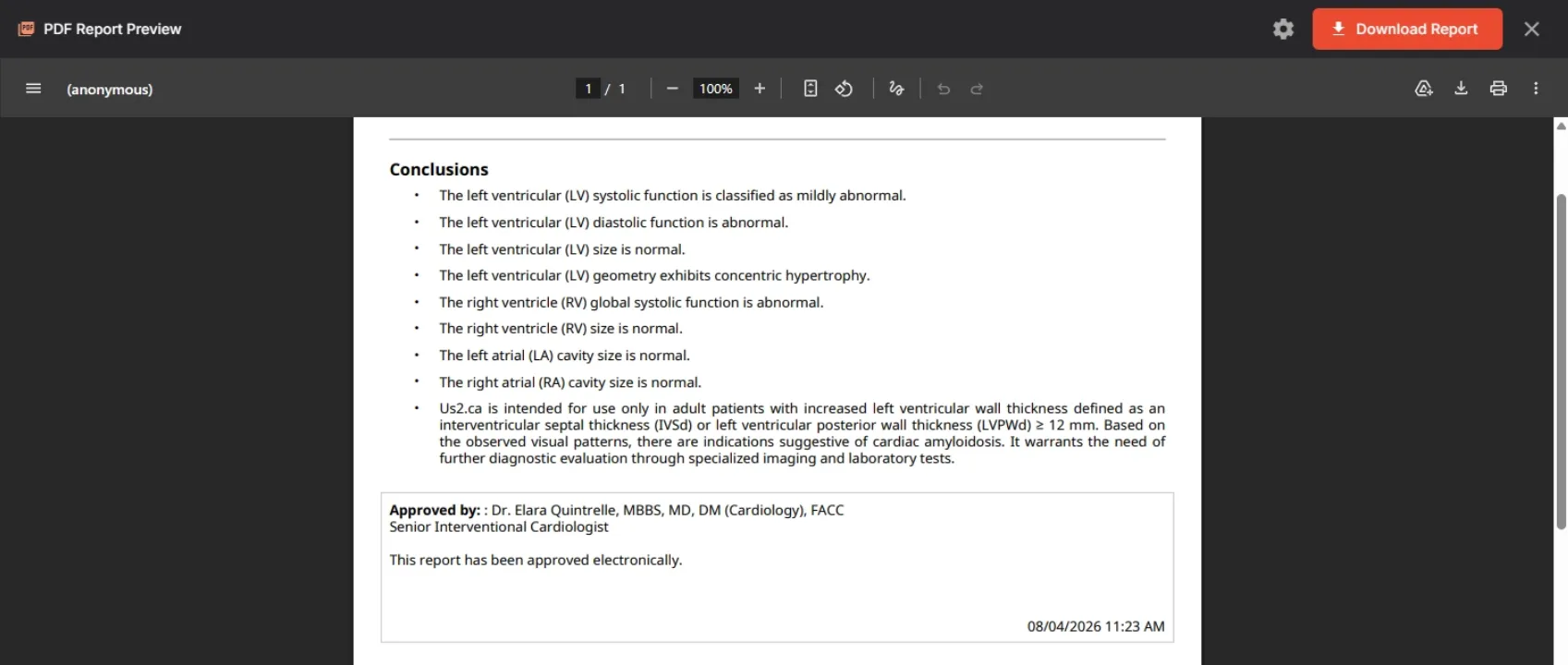
- Conclusions: Summarizes findings for quick interpretation. The conclusion section within the report can be enabled or disabled according to your preference.
- To toggle this setting:
- Navigate to the Settings page.
- Go to Report settings.
- Toggle "Show short conclusion in report" on or off to control whether the conclusion appears in the final report.
- Disease Guidelines: All findings within the Disease Guideline can be added to the “Main Findings” section
- Select "Create a finding" to move it up to the Main Findings section.
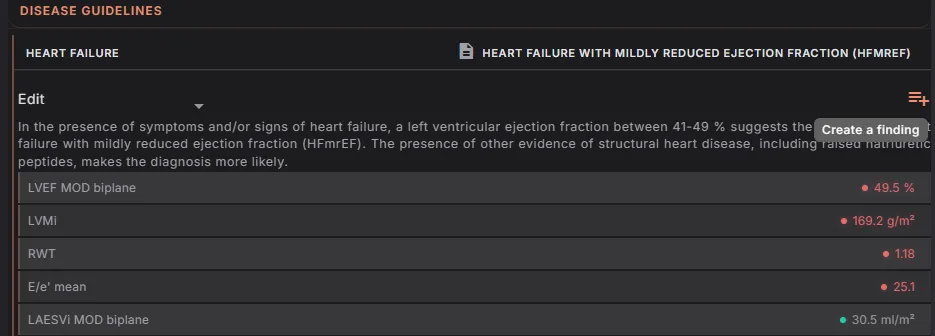
- To remove a finding from the report, select "Remove finding".
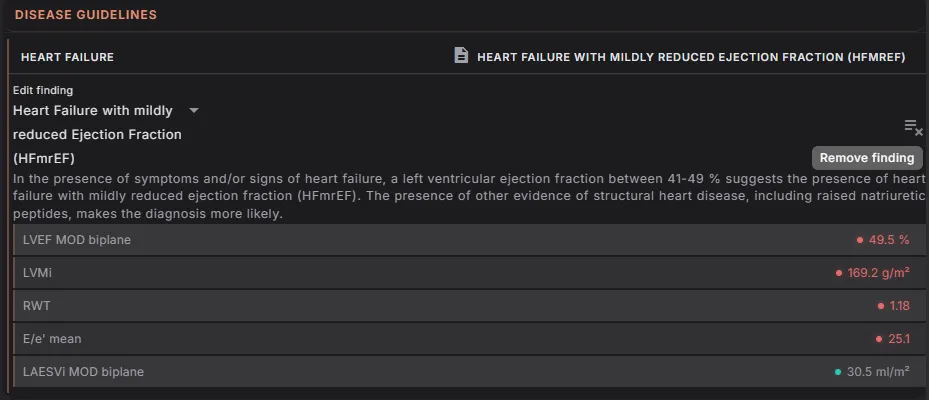
- Select "Create a finding" to move it up to the Main Findings section.
- Measurements by Region/Views: Break down measurements based on region or imaging view. For detailed instructions on how to edit, add or delete measurements for 2D, Doppler and GLS, please refer to sections 5.6.5 to 5.6.8 in the user guide. These sections will guide you through the steps for modifying measurements within those categories.
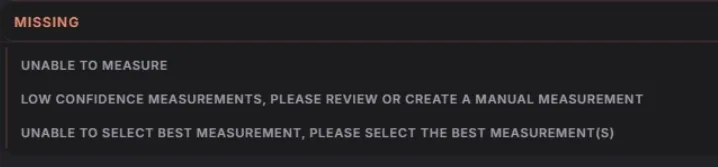
- Missing: Flags missing measurements for attention.
5 Advanced Functions
5.1.6 Report Customization
5.1.7 Printing a report
Click the printer icon in the header of the Report in order to print it.

The report can be downloaded to your computer by selecting the ‘Download’ report button on the top right corner.
5.4 Editing patient information
Patient information such as name, gender and other characteristics at the top of the Report can be edited.
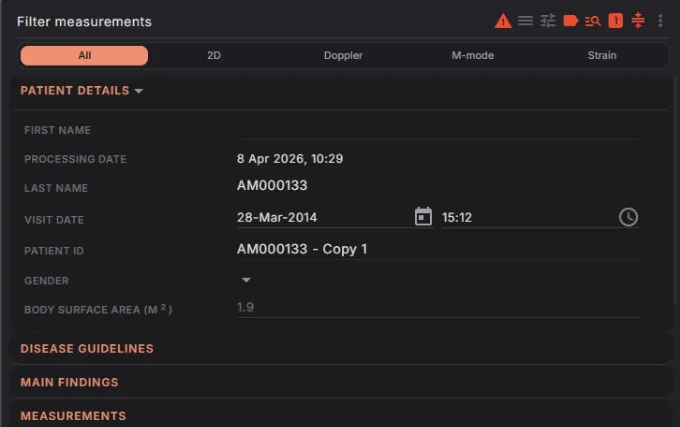
If there are more patient demographic details that need to be included in the report, expand the toggle to reveal the dropdown menu where you can add any other relevant details.
Once you are satisfied with the edits and additions, locate the “Save” button within the application. The “Save” button is usually found at the bottom of the screen. Click on the “Save” button to save all changes you have made to patient’s information and demographics.
If the gender of the patient has not been set, this will be indicated in the Notes field and female guideline values used to determine out of range values. Once the gender is set, this indication in the Notes field will be removed.
5.10.6 Stress Echo Protocol
Selecting the Stress Echo Protocol
To access the Stress Echo Protocol, navigate to the protocol drop-down list located at the top of your report page. From there, select 'Stress Echo Protocol' to enable the specific functionalities associated with this protocol
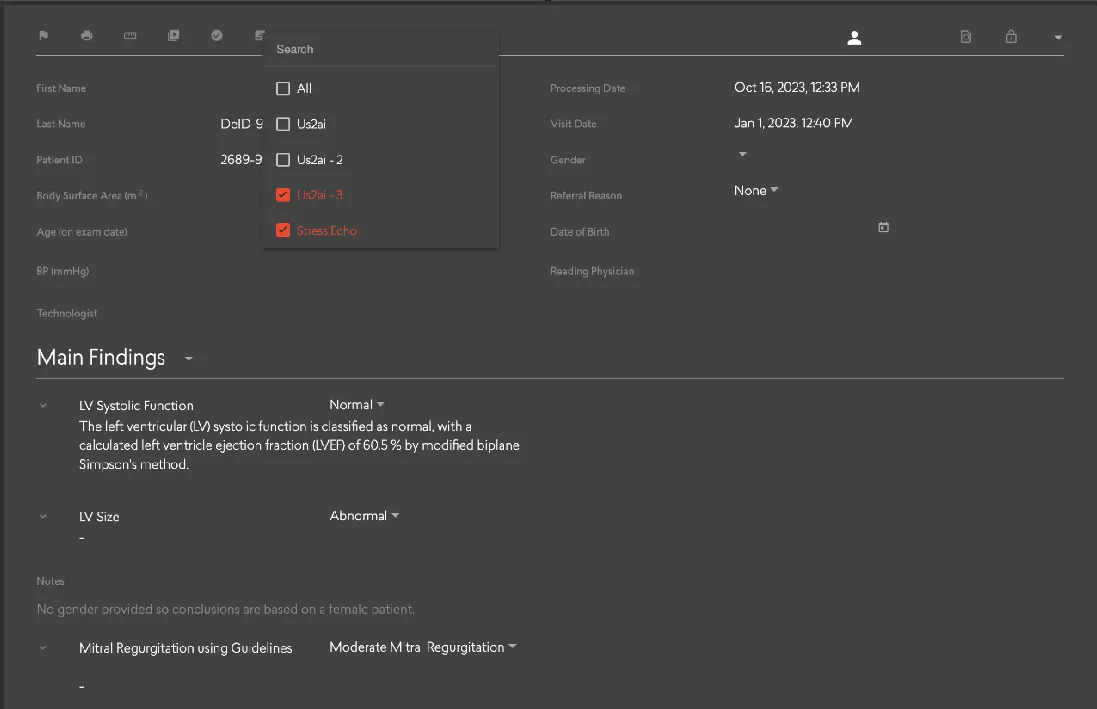
Conclusion for Stress Echo Result
Within the main findings section of your report, a dedicated conclusion for the stress echo result will be provided. This summary will help you interpret the findings from the stress echo procedure.
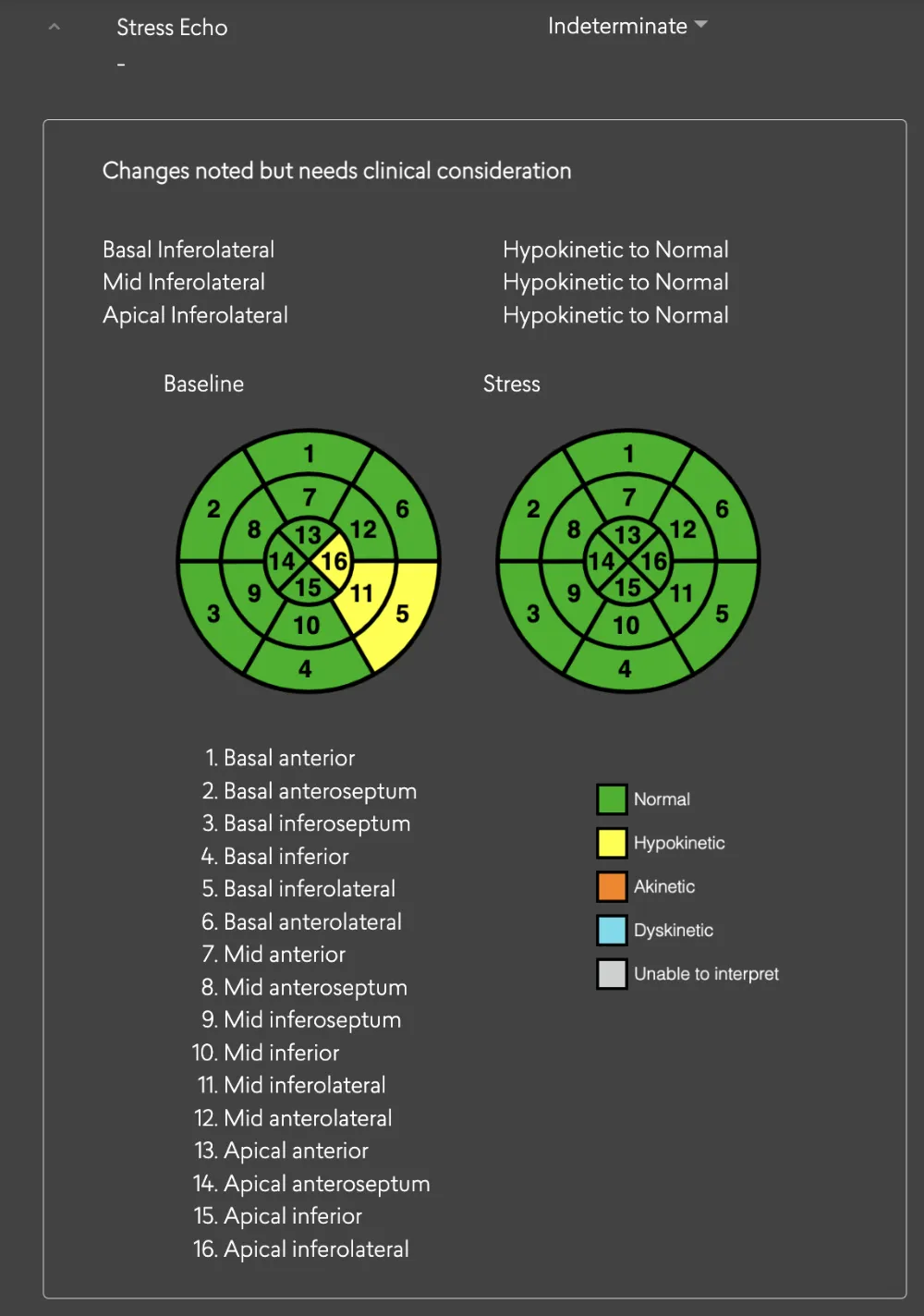
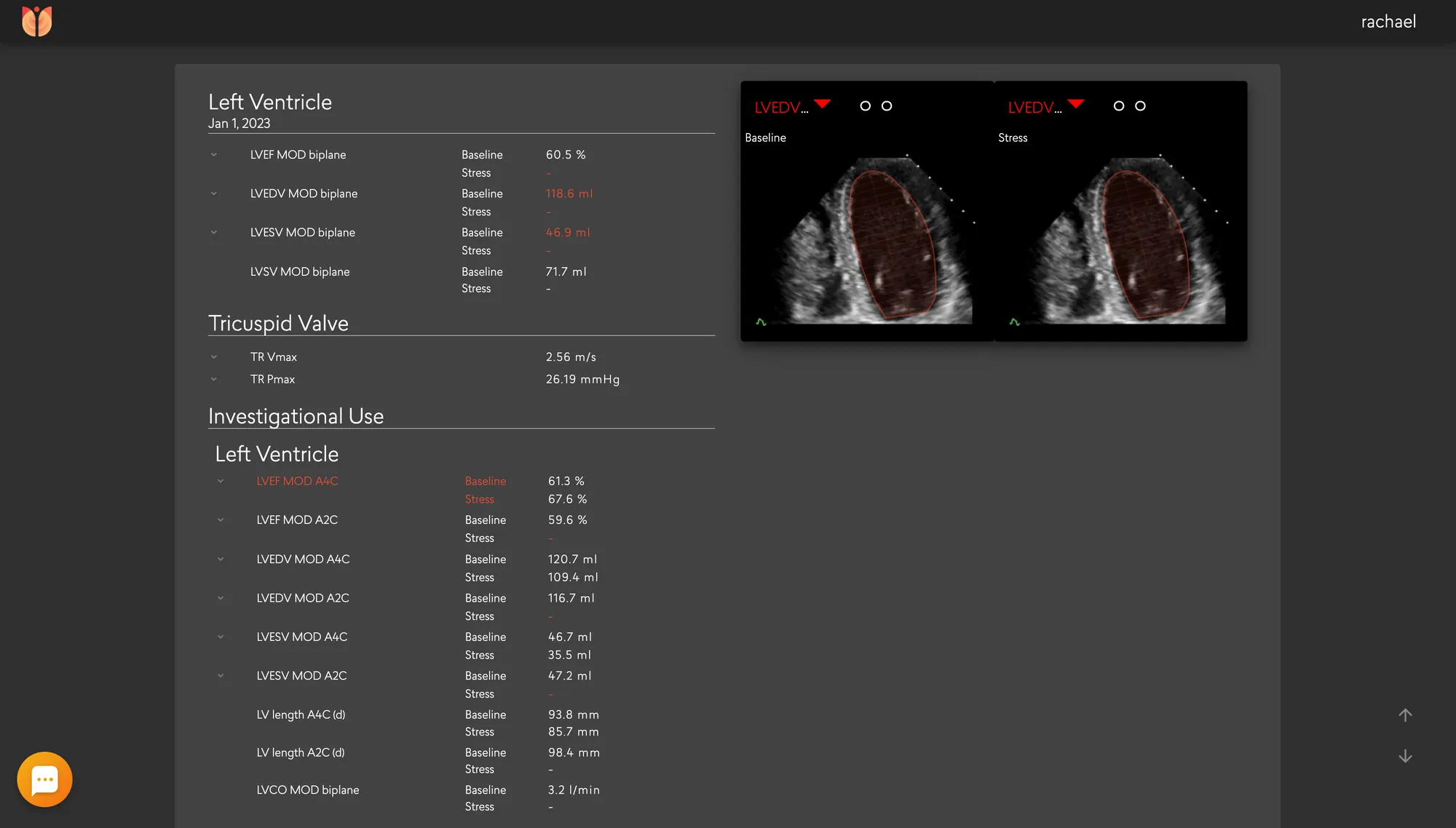
Baseline and Stress Echo Parameters
On the report page, both baseline and stress echo parameters will be accessible. This includes important metrics like RWMA (Regional Wall Motion Abnormalities) and LV systolic that are relevant to the stress echo assessment.
5.10.7 Contrast Echocardiography
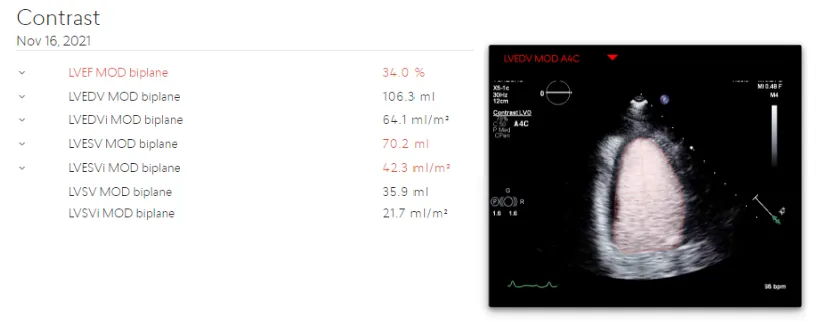
LV Volume and LV Systolic functions as outlined in Table 2 are also available in cases where contrast echocardiography is employed. Echo parameters derived from contrast views are available on both the report and measurement pages.
Report page
6 Performance Summary
Us2.v2 is an expansion of the measurements of Us2.v1. Thus the performance of the Us2.v1 measurements are covered within the jurisdiction of Us2.v2.
The automated analysis generated by Us2.v2 will be compared head-to-head against manual analysis (of the same patient data and the same images) generated by trained echocardiography technicians or cardiologists, both in “gold standard” reference echo core labs and “real world” clinical settings. Test datasets are strictly segregated from algorithm training datasets, as they are from completely separate cohorts. Two statistical metrics, Root Mean Square Error (RMSE) and Intraclass Correlation Coefficient (ICC) are used to evaluate the performance of the Us2.v2 measurements against expert human measurements.
DICOM images from a wide variety of manufacturers were used to validate the software. DICOM metatag data available in these files contained the following manufacturer and models for the respective versions of our software:
DICOM images used for validation were captured with a variety of convex, linear and phased array probes showing an acquired frequency ranging between 1.4-10 MHz, and a Frames Per Second (FPS) range of 7- 209, with a mean of 31 from the following models, when information was available in the DICOM tags:
6.1 Us2.v1
6.2 Us2.v2
8 Manufacturer info
This software was manufactured in 2025 by Eko.ai Pte Ltd (dba Us2.ai).
Singapore
163 Tras Street, 09-04
Lian Huat building
Singapore 079024
9 Printed user guide
Users can request a printed version of the user guide anytime by sending a request to info@Us2.ai. The document is free and will be delivered within 7 calendar days.
The following measurements are automatically calculated if the values are available,